Vous utilisez probablement Google au quotidien pour vos recherches, qu’elles soient personnelles ou liées à votre activité professionnelle. Mais êtes-vous certain d’exploiter tout le potentiel du plus grand moteur de recherche au monde, en particulier pour votre veille marketing ?
Aujourd’hui, nous allons voir comment les opérateurs de recherche Google peuvent vous aider à surveiller vos concurrents et les thématiques qui vous intéressent afin de puiser l’inspiration dont vous avez besoin pour vos contenus marketing.
L’opérateur “site”
Le plus basique de tous les opérateurs Google est “site”. En le plaçant devant le nom du site de votre choix, vous ne verrez que des pages issues de ce même site dans les résultats de recherche : il s’avère donc très utile pour voir les publications d’un concurrent, par exemple. Vous pouvez également l’utiliser pour savoir combien de pages sont indexées sur un site.
Quel que soit l’opérateur utilisé, veillez à ne pas mettre d’espace ni avant, ni après les «:». Dans le cas contraire, le moteur de recherche ne pourra pas identifier l’opérateur et la recherche ne pourra pas aboutir.

Pour que la recherche soit la plus large possible, inscrivez directement le nom de domaine, sans « www » en amont. Dans le cas contraire, vous risquez d’exclure les pages liées aux sous-domaines, et ainsi de restreindre votre recherche.
Toutefois, si le site en question est important, vous vous retrouverez malgré tout avec une très longue liste de résultats à éplucher (plus de 800 000 pour lemonde.fr, par exemple). C’est pourquoi il va être intéressant d’introduire d’autres commandes de recherche.
L’opérateur “intitle”
L’opérateur “intitle” permet de spécifier qu’un terme de recherche doit se trouver dans le titre de la page. Il est particulièrement utile pour faire une veille des pages web sur un thème ou un sujet précis. Par exemple :

Seules les pages dont le titre contient “marketing” apparaissent.
À titre de comparaison, la recherche “marketing” (sans le mot « intitle ») donne 1 760 000 000 de résultats : cet opérateur permet donc d’affiner considérablement votre recherche. Mais, sur des termes très utilisés, la liste de résultats peut s’avérer très longue. Il est possible de faire encore mieux, en précisant d’autres termes.
Pour ce faire, il vous faudra utiliser un autre opérateur, un peu différent. Pensez alors à la commande “allintitle”, qui a la même utilité que la précédente, si ce n’est qu’elle permet de renseigner plusieurs termes de recherche à la fois :

Si vous souhaitez savoir ce qu’a publié un site en particulier sur un sujet spécifique, il est possible de combiner deux opérateurs (par exemple “intitle” et “site”) :

Vous pouvez ainsi obtenir des résultats très fins (440 dans notre exemple), afin de ne trouver que des pages pertinentes.
L’opérateur “intext”
À la manière de intitle, “intext” permet de sélectionner les pages contenant un terme de recherche dans le corps de leur texte.
Attention : C’est un opérateur qui s’avère moins pertinent pour une recherche qui se veut très précise. Néanmoins, il est bon de savoir qu’il existe.
Il possède lui aussi une variante (“allintext”) permettant de rechercher plusieurs mots :

Enfin, il peut également être combiné avec “site” pour plus de précision :

Les guillemets
Si vous recherchez une expression et que vous souhaitez connaître les pages qui utilisent exactement la même phrase (avec le même ordre des mots, etc), les guillemets sont la meilleure solution :

Les opérateurs “before” et “after”
Ces opérateurs sont utiles pour obtenir des résultats en fonction de leur date de parution.
- Pour trouver une correspondance avant une date précise, utilisez l’opérateur « before ».
- Pour trouver une page publiée après la date inscrite, c’est « after » qu’il vous faudra utiliser.
À titre d’exemple, si vous souhaitez trouver une page publiée par le site Le Monde, avant février 2021, voici la recherche que vous devrez taper : «site:lemonde.fr after:02-2021».
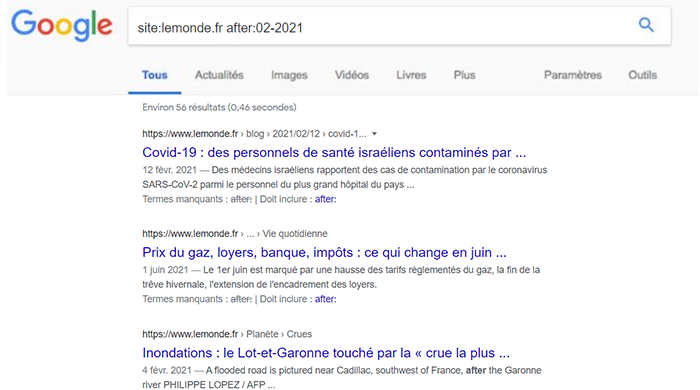
Si vous choisissez d’indiquer une date complète, il vous faudra séparer les éléments par des tirets. Pour que Google comprenne votre recherche, la date doit apparaître sous le format suivant : JJ-MM-AAAA.
Vous n’êtes pas tenu de renseigner la date complète. Vous pouvez renseigner uniquement l’année ou le mois et l’année.
Les opérateurs + et –
Les opérateurs + et – ont respectivement une fonction d’inclusion et d’exclusion. Ainsi, en ajoutant “+” devant un mot, ce dernier sera présent sur les pages proposées dans les résultats :

À l’inverse, en ajoutant “-“, les résultats contenant le mot seront exclus :

Les deux opérateurs peuvent bien entendus être combinés entre eux (et avec d’autres).
L’opérateur « filetype »
Pour cibler un type de document en particulier, « filetype » est l’opérateur idéal. Par exemple, si vous recherchez les résultats d’une étude ou un rapport, vous avez de grandes chances pour que le document soit sous format PDF. Ainsi, dans Google, renseignez : « filetype:pdf ».

Vous pouvez utiliser cet opérateur pour rechercher plusieurs types de fichiers. Voici quelques exemples pour :
- Une image : filetype:png, filetype:jpeg, filetype:svg
- Une présentation PowerPoint : filetype:ppt
- Un tableau excel : filetype:xls
L’opérateur “related”
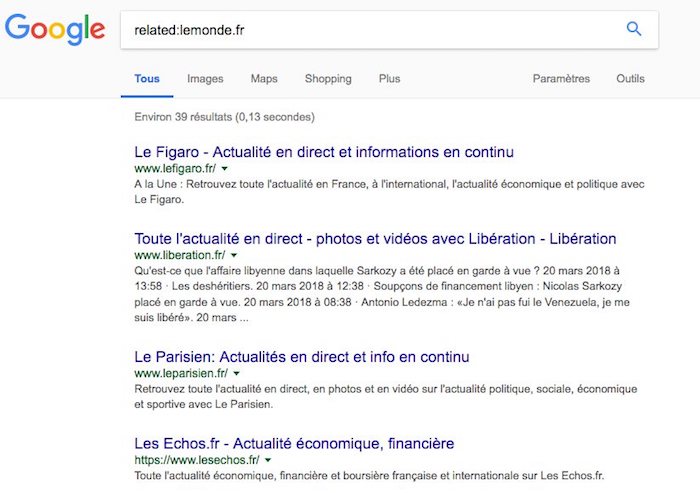
Le dernier opérateur à connaître est “related”. Il permet d’afficher les sites similaires à n’importe quel site de votre choix : idéal pour avoir une vue d’ensemble de vos concurrents ou des sites qui publient des pages sur les mêmes thématiques que vous.
À lire aussi : 7 opérateurs de recherche pour booster votre SEO
Conclusion
Vous l’aurez compris : utiliser des opérateurs Google permet de cibler et d’affiner votre recherche. À la clé : un gain de temps, des résultats plus pertinents et une veille plus efficace.
Vous pouvez aussi choisir de confier votre veille marketing à des professionnels freelance sur Codeur.com.