Comment publier une application sur l’Apple Store ? C’est ce que vous allons voir dans cet article !
L’App Store comptabilise 750 000 applications et représente 28% du marché. Son atout principal réside dans son audience assez haut de gamme, avec des utilisateurs prêts à payer pour obtenir des jeux ou outils de qualité.
Face à ces potentiels consommateurs au pouvoir d’achat important, il est normal de vouloir développer son application pour iOS. C’est l’occasion de générer des revenus importants, mais aussi de promouvoir son activité ou d’obtenir de nouveaux clients.
Alors, comment publier une application sur l’Apple Store ? La réponse en 8 étapes clés !
1) Créer un compte Apple Developer
Ce guide part du principe que vous avez déjà créé et développé votre application iOS et que vous vous apprêtez à la publier. Mais si vous avez besoin d’aide pour développer votre application iOS, vous pouvez faire appel à un développeur Swift freelance qui pourra se charger de développer ou de terminer votre application. Passons maintenant à la publication de votre application iOS sur l’Apple Store.
Un compte développeur chez Apple coûte 99$ par an. Si vous voulez diffuser une application dans votre entreprise, il faut adhérer à l’Apple Developer Enterprise Program, qui coûte 299$/an.
Cependant, pour répondre à la question « Comment publier une application sur l’Apple Store ? », nous allons nous concentrer sur le compte Apple Developer « classique ».
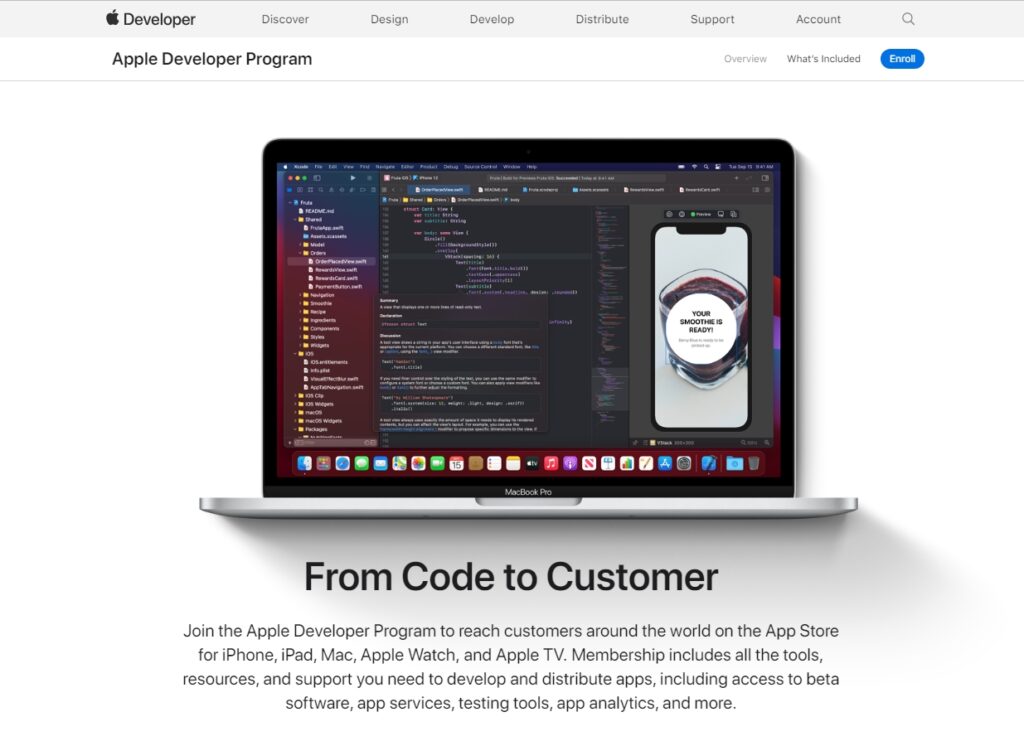
- Rendez-vous sur ce lien pour vous inscrire, puis cliquez sur « Enroll ».
- Vous pourrez vous connecter avec votre Apple ID, si vous en avez déjà un. Sinon, créez-le.
- Validez les conditions avant de sélectionner le programme auquel adhérer. Vous aurez le choix entre :
- Le programme Individuel: les applications publiées apparaîtront en votre nom. C’est le choix parfait si vous êtes freelance ou gérant d’une TPE. Cela vous permettra de gérer votre image.
- Le programme Organisations: pour publier au nom de votre entreprise, il va falloir choisir cette option. Néanmoins, il est nécessaire de vous munir de votre D-U-N-S Number. Préparez cette étape en amont, car la procédure prend plusieurs semaines…
À noter qu’il existe aussi un programme réservé aux organisations gouvernementales. - Remplissez les informations demandées. Ne soyez pas surpris qu’Apple vous propose un champ « Company / Organisation » alors que vous avez sélectionné le programme individuel. Indiquez juste votre prénom et nom à cet endroit.
À la fin du processus, pensez à bien :
- Accepter les conditions générales d’utilisation
- Vérifier les renseignements de facturation
- Adhérer au programme « iOS Developer Program »
- Cliquer sur « Add to cart » puis régler votre abonnement
Après le paiement, comptez environ 24h pour l’activation de votre compte Apple Developer. Dès qu’il sera validé, vous obtiendrez un accès à l’App Store Connect. Ce dernier permet de gérer et soumettre vos applications.
2) Regrouper les informations importantes avant de publier sur l’Apple Store
Au moment de soumettre votre application, Apple va vous demander des informations et renseignements sur cette dernière. Le but est de construire la fiche produit apparaissant sur le store.
Les éléments suivants sont donc essentiels pour capter l’attention des utilisateurs et vous assurer un nombre de téléchargements important. Et il convient d’y réfléchir AVANT d’entrer dans le processus de soumission d’app !
Le nom de l’application
Comme nous l’avons déjà mentionné, l’App Store est un marché très fréquenté : il héberge 2.2 millions d’applications. Dans une telle mer de logiciels, il peut être difficile de sortir du lot.
La solution : commencez par lui donner un nom original et évocateur ! Une autre approche consiste à utiliser le mot-clé qui correspond le mieux à votre application. Cette bonne pratique génère un impact direct sur l’algorithme Apple.
Voici quelques conseils pour rédiger ce petit nom d’une grande importance :
- Restez simple, accrocheur et facile à comprendre.
- Communiquez l’objectif principal de votre application.
- Ne dépassez pas les 30 caractères.
- Evitez d’imiter ou copier le nom d’un concurrent.
- N’utilisez pas de caractères spéciaux, ni de marques déposées ou noms de célébrités. (Votre application risque de ne jamais être approuvée).
Le sous-titre et la description
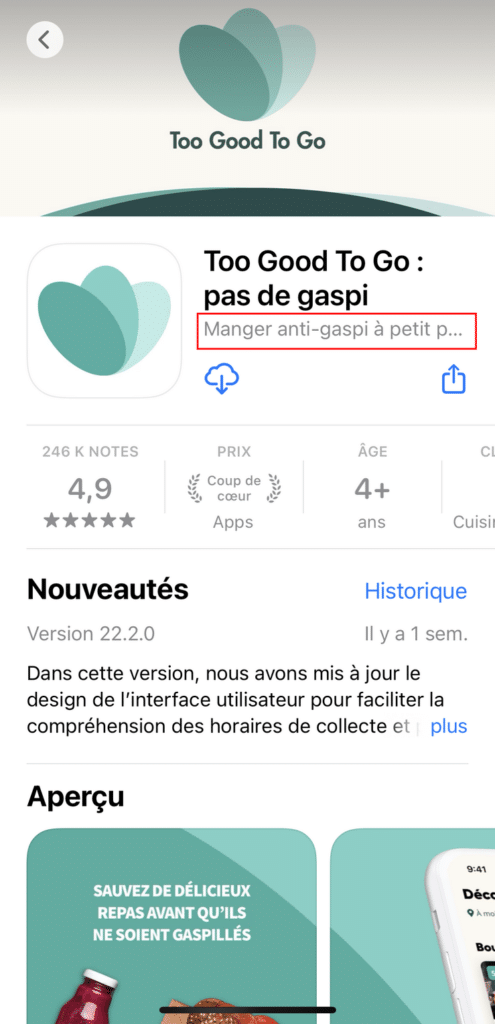
Située juste sous le nom de l’application, le sous-titre fournit une information supplémentaire sur votre application. Il doit donc être simple et surtout, très court. Seuls les 3-4 premiers mots sont visibles sur iPhone ! Entrez donc dans le vif du sujet directement…
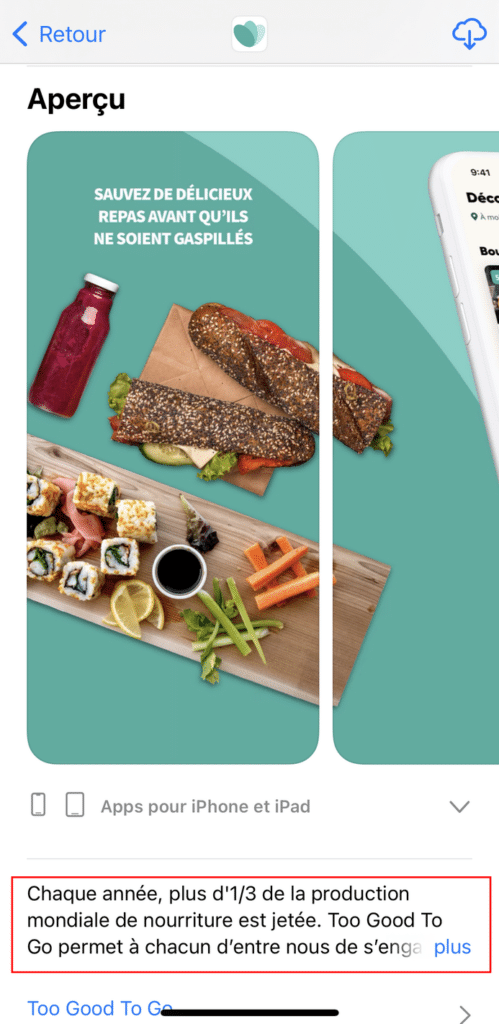
La description, située sous la galerie de captures, vous permet de détailler davantage votre produit. Soignez la première ligne, car c’est elle qui apparaît avant le lien « Plus ». Dans la suite du texte, vous pourrez résumer les fonctionnalités principales de votre app, puis lister ses bénéfices.
Voici quelques autres conseils rapides pour optimiser la description :
- Ne soyez pas trop promotionnel et prétentieux : évitez les phrases d’accroche comme « la meilleure application… ».
- Pensez bien à vous adresser à votre cible en adoptant son ton et son jargon.
- Utilisez vos mots-clés de manière naturelle. Ne sur-optimisez pas.
- Soyez factuel en présentant les atouts et fonctionnalités de votre app.
L’icône
L’icône est la première chose que vos utilisateurs voient dans les résultats de recherche de l’App Store. Cette pole-position nécessite un soin tout particulier. Il est conseillé d’accorder de l’importance à son esthétique et sa conception visuelle.
Voici les aspects techniques que l’icône doit respecter :
- Taille : 1024 x 1024 pixels (sans coins arrondis)
- Format : PNG
- Couleurs : sRGB/P3
Veillez également à ce que l’icône soit :
- Dans une colorimétrie qui correspond au message que vous voulez envoyer et à votre audience. Par exemple : vert pour le naturel, rouge pour le dynamisme ou l’urgence, bleu dans le domaine de la santé, noir ou gris pour la technologie…
- Explicite : le dessin doit faire passer un message.
- Cohérente avec votre image de marque et votre charte graphique, si vous êtes une entreprise.
Les captures d’écran
Pour publier une application sur l’Apple Store, vous devrez télécharger au moins une capture d’écran.
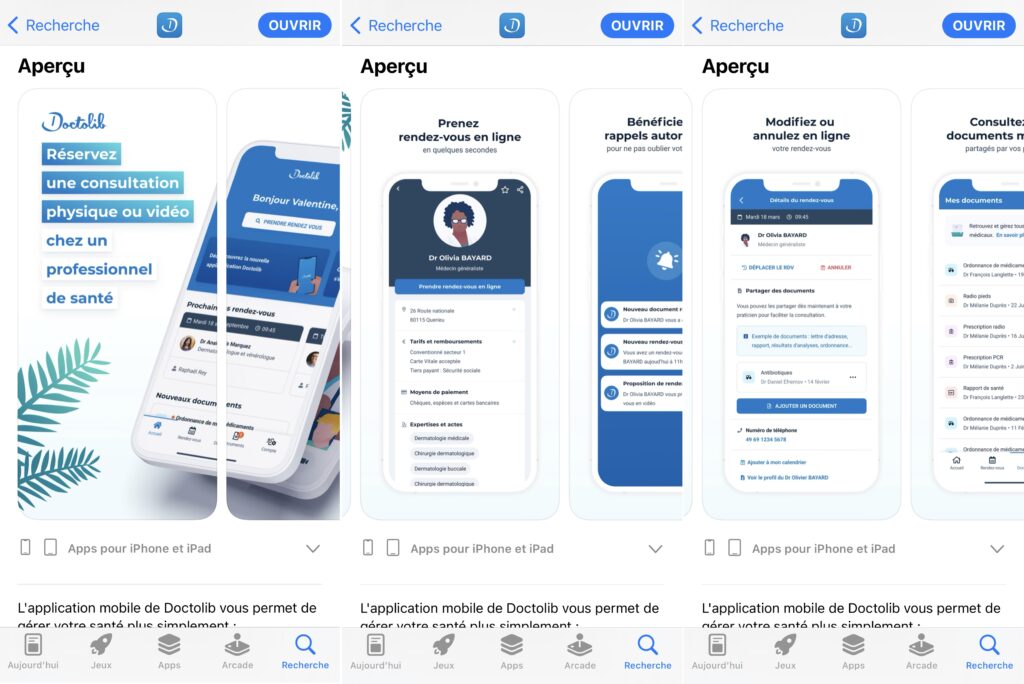
Cependant, vous pouvez (et il est recommandé de le faire), uploader jusqu’à 10 visuels. Idéalement, les 3 premières captures devraient mettre en avant l’objectif rempli par votre application, ainsi que sa valeur ajoutée. Les autres permettront de visualiser ses caractéristiques distinctives, comme dans cet exemple :
La catégorie
Apple vous permet d’ajouter jusqu’à deux catégories pour votre application : une principale et une secondaire.
Votre catégorie primaire est la plus importante pour être identifié et découvert sur l’App Store. Ainsi, lorsque les utilisateurs parcourent le magasin ou filtrent les résultats de recherche, c’est dans cette catégorie que votre application apparaîtra.
Étudiez l’objectif de votre application : qu’est-ce qu’elle permet de faire ? Réaliser des économies, accroître sa productivité, suivre sa santé, se divertir, acheter des choses… À partir de la réponse, vous trouverez facilement la classification adaptée.
Les mots-clés
Voilà une section unique à l’App Store : le champ « mots-clés ». Celui-ci est privé, il n’apparaît pas sur la fiche de votre application. Son rôle est de vous positionner auprès des utilisateurs, en fonction des requêtes qu’ils tapent dans la barre de recherche.
Vous devez les choisir précieusement, afin d’améliorer votre visibilité auprès d’une audience qualifiée. Voici quelques conseils pour remplir ce champ de façon optimale :
- Listez les mots-clés en lien avec votre stratégie SEO : ce sont ceux que vos acheteurs utilisent, normalement
- Pensez aussi aux mot-clés liés à l’intention de recherche de votre public.
- Trouvez le juste milieu entre un classement faible sur des termes populaires et un classement élevé sur des termes moins connus.
- Evitez d’utiliser des noms de célébrités, des termes de marque ou d’autres mots et expressions protégés.
Le lien vers le support client
Pour publier une application sur l’Apple Store, vous devrez fournir une URL d’assistance aux utilisateurs qui ont des questions. Sur cette page, ils pourront vous contacter selon plusieurs moyens : formulaire, email, téléphone, réseaux sociaux, live chat…
Si vous voulez que votre app soit validée, prenez soin de vous montrer disponible et d’offrir aux potentiels clients différentes façons de poser leurs questions.
Bon à savoir : ce lien n’apparaîtra qu’auprès des utilisateurs ayant acheté votre application.
Les droits d’auteur
Vous devez absolument intégrer le nom du propriétaire qui détient les droits exclusifs sur l’application, précédé de l’année où il a obtenu ces droits.
La classification par âge
Avez-vous réfléchi à l’accessibilité de votre application pour les enfants et adolescents ? Lorsque vous accédez à la page de classification par âge, des questions vous sont posées sur le type de contenu de votre application.
Les réponses détermineront la classification par âge de votre application :
- 4+ : aucun contenu répréhensible.
- 9+ : le contenu peut être inadapté aux enfants de moins de 9 ans.
- 12+ : peut contenir des éléments inappropriés pour des enfants de moins de 12 ans.
- 17+ : cette app peut contenir des éléments inappropriés pour les enfants de moins de 17 ans.
3) Créer son Bundle ID
Il s’agit de créer la carte d’identité de son application. Sur l’Apple Developer Program :
- Dans le menu de gauche, allez dans la rubrique « Certificates, IDs & Profiles ».
- Dans « Identifiers », cliquez sur « App IDs ».
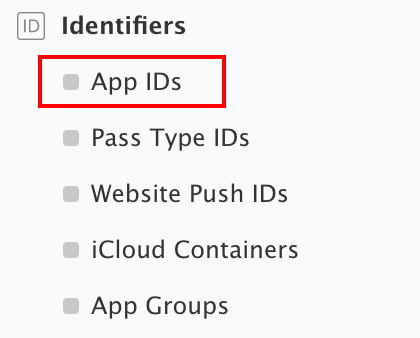
- Pour ajouter votre application, sélectionnez le bouton « + » en haut à droite.
- Remplissez les informations demandées.
- Dans le champ « App ID Description », entrez le nom de votre application. Attention, il ne s’agit pas forcément du nom officiel, qui s’affichera dans l’App Store. C’est votre identifiant. Vous pouvez donc choisir votre nom, votre raison sociale ou tout autre terme.
- Dans le champ « Bundle ID », entrez un identifiant unique. Celui-ci doit être rédigé de cette manière : com.[nom de votre organisation].[nom de votre appli].
- Dans la section App Services, choisissez « Associated Domains ».
Si votre application comprend des notifications, cochez également « Push Notifications ».
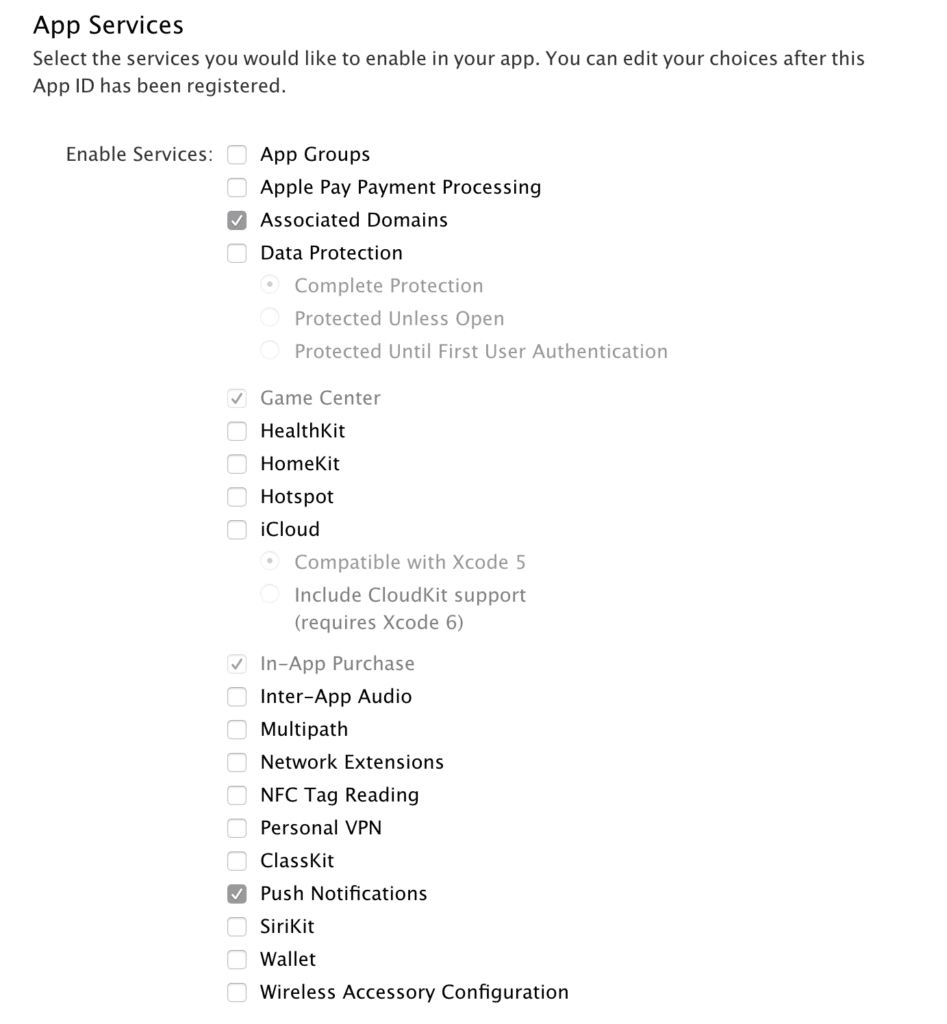
Et voilà ! Vous avez créé la carte d’identité de votre application.
4) Créer le provisioning profil
Comment publier une application sur l’Apple Store ? En générant votre provisioning profile iOS, toujours via votre espace développeur.
- Dans la section « Certificates, Identifiers & Profiles », rendez-vous sur « Provisioning files ».
- Choisissez « Distribution » et cliquez sur le « + ».
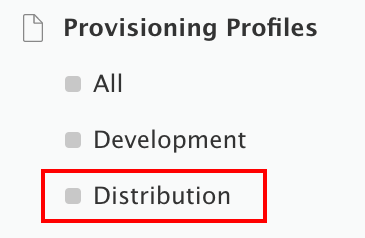
- Sélectionnez « App Store » et retrouvez votre ID.
- Choisissez votre certificat, puis téléchargez et enregistrez le profil de configuration généré.
Une fois que ce fichier est prêt, vous pouvez le télécharger dans votre espace personnel afin de générer l’IPA.
5) Demander un certificat de signature
La demande d’un certificat est nécessaire pour relier votre ordinateur à votre compte développeur Apple. Comment faire ?
- Sur votre appareil macOS, ouvrez « KeyChain Access » puis cliquez sur l’assistant de certification et « demander un certificat à l’autorité de certification ».
- Remplissez les informations demandées.
- Cliquez sur « Terminé ». Vous recevrez le certificat par email.
6) Installer le certificat
Dès que vous avez obtenu votre certificat de signature, vous devez l’installer sur votre Mac afin de lier vos applications à votre compte développeur.
- Rendez-vous sur le portail des développeurs Apple, section « Certificats »
- Cliquez sur le « + » en haut à droite.
- Allez dans « Production », puis « App Store » et « Ad Hoc ».
- Téléchargez la demande de signature et le certificat.
- Installez le certificat sur votre ordinateur par un double-clic.
7) Tester votre application
Maintenant que tout est prêt, il est conseillé de tester votre application avant de la soumettre à Apple. Rendez-vous sur Testflight ! Cette plateforme vous aide à regrouper vos bêta-testeurs et à récolter des feedbacks dans l’objectif de corriger les bugs et d’améliorer l’expérience utilisateur.
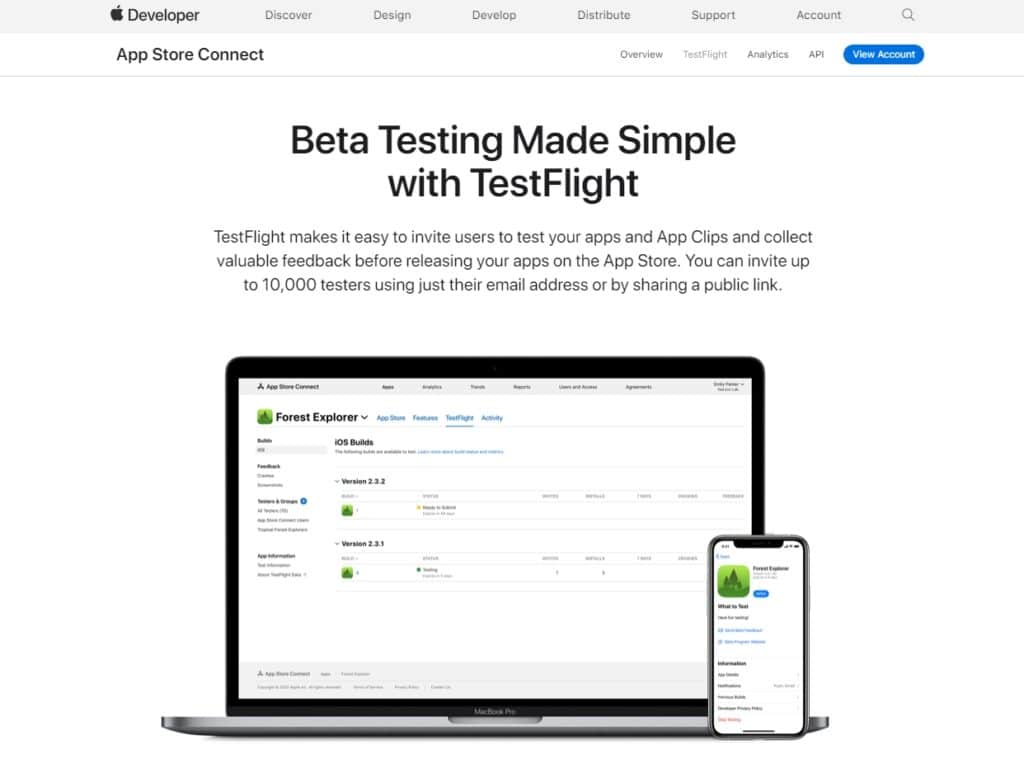
Si votre application est destinée aux iPad et iPhone, pensez à bien réaliser les tests sur ces 2 types de terminaux. Même si les modèles de smartphones ou tablettes d’Apple ont une gamme restreinte, il existe quand même quelques différences d’écran. Votre application ne doit pas être pixelisée ou illisible sur certains appareils…
Dès que vous avez réalisé plusieurs tests et que votre application est complètement terminée, il est temps de la soumettre à Apple.
8) Publier votre application sur l’Apple Store
Nous arrivons à la dernière étape de notre tutoriel : la soumission de votre app ! Rendez-vous sur iTunes Connect :
- Cliquez sur « My Apps », puis sur le bouton « + » dans le coin supérieur gauche.
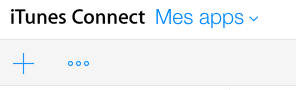
- Dans le menu contextuel, sélectionnez « New app ».
- Dans la boîte de dialogue, sélectionnez la ou les plateformes sur laquelle (lesquelles) diffuser votre application.
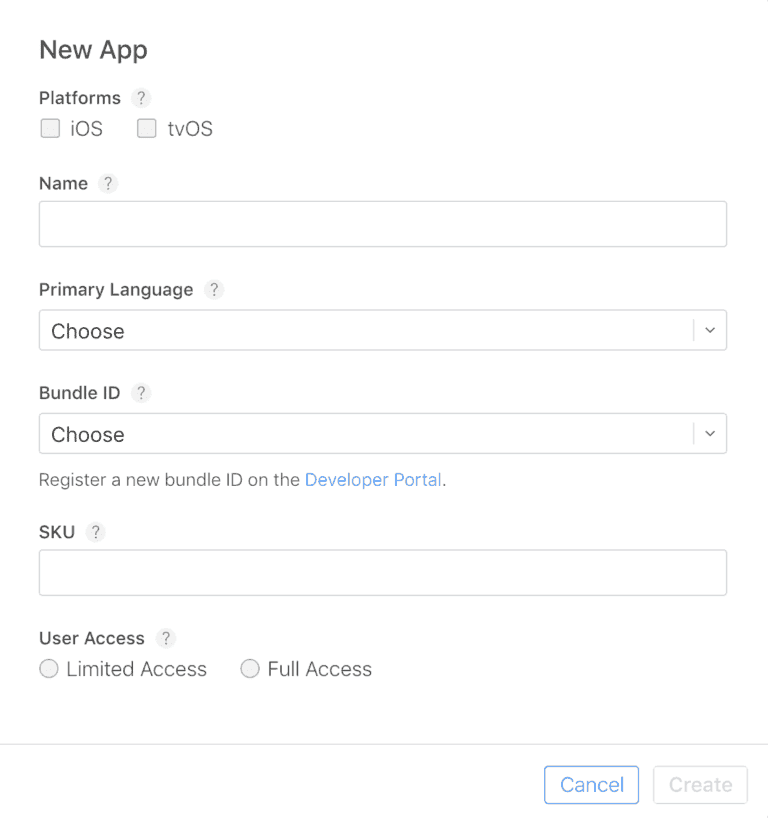
- Saisissez les informations demandées.
- Sous « User Access », choisissez entre « Limited Access » (Accès limité) ou « Full Access » (Accès complet). Si vous sélectionnez l’accès limité, sélectionnez les utilisateurs qui pourront accéder à votre application.
- Cliquez sur « Create ».
- Rendez-vous dans « App Information » pour remplir la fiche produit avec les informations regroupées à l’étape 2.
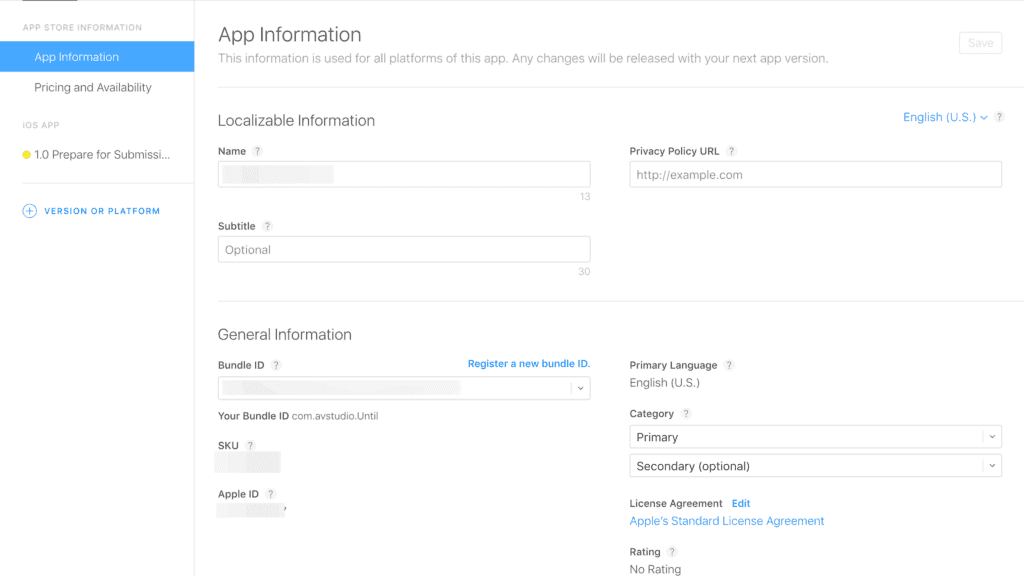
Votre application apparaît désormais dans votre tableau de bord, avec le statut « Prepare for Submission ». Vous pouvez sélectionner « App Information » pour la modifier, ajouter des données ou supprimer certains éléments.
Et maintenant ? Contrôlez régulièrement le statut de votre application. Il se peut qu’Apple vous demande des éléments complémentaires, avant de valider complètement votre petit logiciel. Dès que votre app est prête, une coche verte apparaît avec la mention « Ready for Sale ». Cela signifie qu’elle est désormais disponible sur le store et que vous pouvez la promouvoir auprès de vos prospects et clients…
Notre astuce
Et voilà, vous savez désormais comment publier une application sur l’Apple Store !
Si vous avez besoin d’aide pour finaliser votre application avant de la publier sur l’Apple Store, faites appel à un développeur Swift freelance en déposant une annonce sur Codeur.com.