Do you want to publish videos, demos, or tutorials online? Are you looking for screencast software to record your screen or capture footage?
To capture and share your on-screen actions, we present 30 free and paid programs, as well as cloud-based screencast tools and Google Chrome plugins. You’re sure to find the software that meets your technical needs!
And if you need help getting a perfect result on your video, consider hiring a freelance video editor on Codeur!
The tools in this article were selected by our team and are not sponsored. Find out how to sponsor your tool.
9 free screencast software
If you have a limited budget and need basic features, you can opt for free screencast software. Here are 9 screen recording programs to check out!
OBS Studio
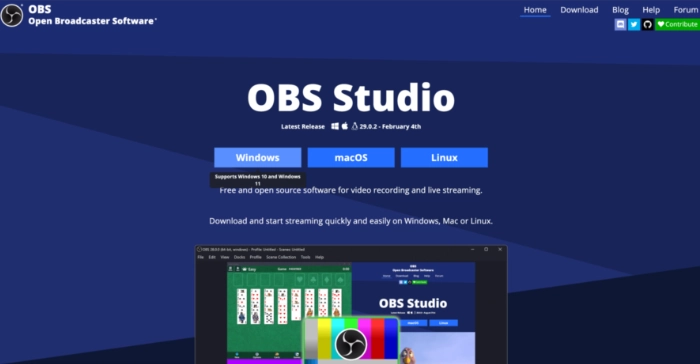
Completely free software, OBS Studio allows you to record your on-screen actions and stream them live to your social networks (Facebook, Twitch, Instagram…).
Available on Mac, Windows, and Linux, this tool is downloaded to your computer to bring your video projects to life.
In addition to recording options, OBS Studio includes editing features to produce your clips like a pro.
iSpring Free Cam
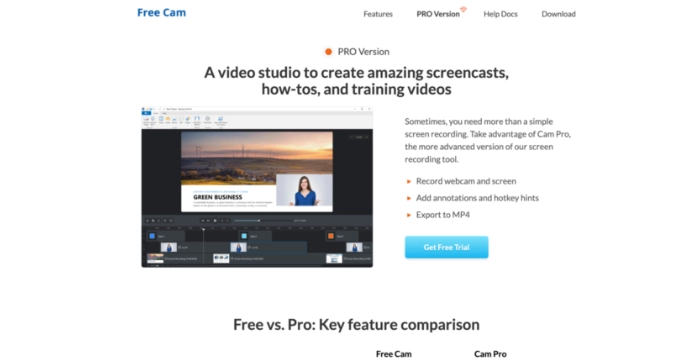
For standard needs, the free version of the screen recorder iSpring Free Cam is sufficient. You will be able to:
- to film or capture your screen (partially or entirely),
- to record your voice via the microphone
- to highlight important elements with a mouse movement.
You can even add your own music to the recordings.
The screen quality is 760p. If you want higher quality (1080p), to record from your webcam, add annotations to your videos, insert text, include transitions and many other tools needed for editing, you must opt for the paid version at $227/year.
EZvid
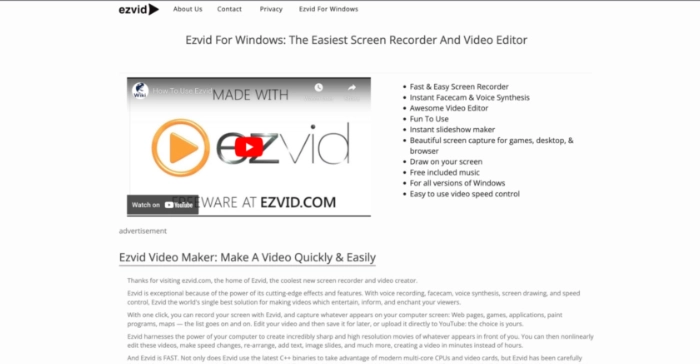
With an intuitive interface, EZvid it allows you to record your screen in high resolution, as well as edit it in just a few clicks.
This screencast software installs quickly on your Windows computer (note: you must have 10 GB of free space on your hard drive!).
Among its key features, you will have the ability to:
- to record your voice over the screen,
- to draw on your video,
- to create slideshows,
- to include music from its royalty-free library
- to upload the video directly to YouTube.
CamStudio
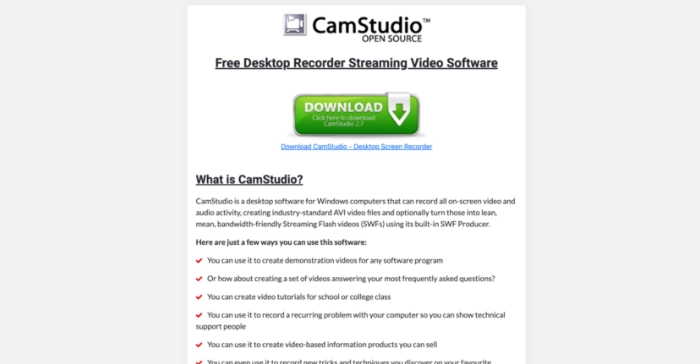
CamStudio It is a pioneer in the screencast software market!
This open-source software with a clean interface is only available on Windows.
After downloading, you can record video captures in a few clicks for your demonstrations, tutorials, or training.
Prefer to record still images at regular intervals rather than a full video? It's possible!
Finally, CamStudio also allows you to add text and draw on the recording.
Windows 10's built-in Game Bar
If your computer runs Windows 10, you have the built-in Windows 10 Game Bar! This utility, accessible via the keyboard shortcut Windows + G, records your screen as images or video, and can also access the webcam and microphone.
Its video editing options remain very limited. This screencast tool is intended only for users who want to quickly capture an action or a still image.
Wondershare DemoCreator
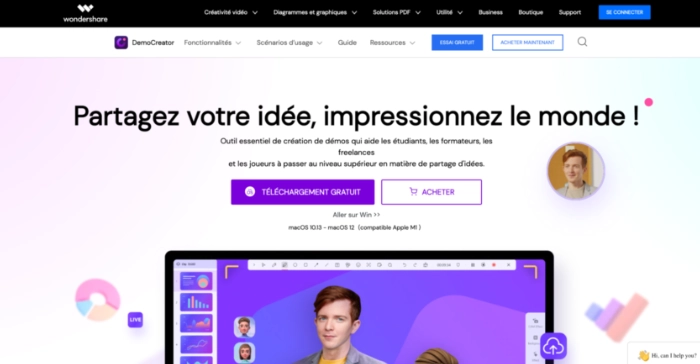
Very comprehensive, Wondershare DemoCreator turns out to be a rather powerful screen recorder… even in its free version!
After installation on your Windows or Mac computer, the software helps you create impactful videos and animations.
Its intuitive interface provides a smooth recording experience while allowing you to add annotations easily. If you need to enhance your video, Wondershare DemoCreator offers easy-to-use editing options. You can trim your clip and make it more dynamic.
Finally, this screencast software lets you publish your content with one click to social networks or YouTube.
ScreenRec
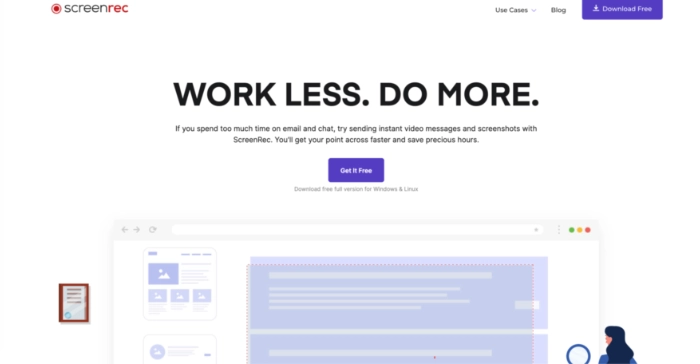
Do you need a free, easy-to-use video capture program? ScreenRec should make you happy! This tool includes the basic features to record your screen and perform common edits: crop, zoom, rotate…
When your capture is complete, it becomes immediately available via shareable links. All that remains is to send them to your clients, collaborators, prospects, or partners…
ScreenRec even includes an analytics tool that tells you how many views your videos have and how long they are watched for.
QuickTime
Let's now mention QuickTime, a screen recorder available only on Mac. In fact, Mac OS users are familiar with this player, as it is the default app for playing music and videos.
However, not everyone knows that this small app also offers screen recording features. QuickTime allows you to perform basic edits like cropping, rotating and trimming an image or video.
Vidyard
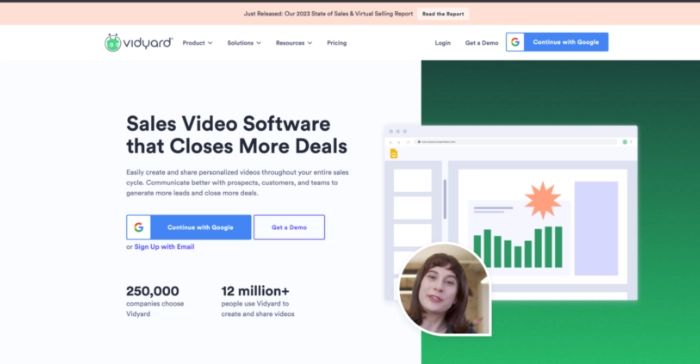
Very intuitive, Vidyard has won over large companies like Wix, Citrix and Dell.
Its free plan allows you to record 25 videos of up to 30 minutes each.
Once captured, you can easily send them by email, on your social networks or via your internal communication tools, such as Slack. You also have the option to embed them in your web pages.
5 paid cloud-based screencast tools
Convenient for always having the tool on hand, cloud screencast software requires no installation.
If you want a solution that’s available at any time, inexpensive and effective, try one of these screen recorders!
Loom: the best screencast software
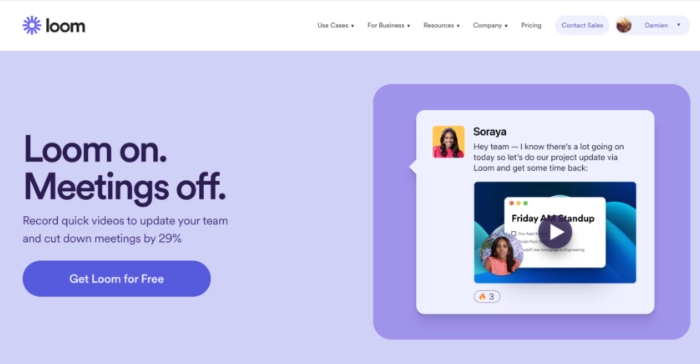
Available on Windows and Mac, on desktop and on smartphone, Loom has won over the offices of large companies like Amazon, Apple, Asana, HubSpot, Netflix, Lacoste and Ticketmaster.
Its free version records the screen, webcam and microphone. Depending on your needs, you can enable one of these features or all of them at the same time. The video is provided in 1080p quality, which is an ideal resolution for your website, social networks or YouTube.
However, Loom Free is limited to 5-minute videos. For unlimited recordings, expect $8 / month / user.
This tool is one of the most popular screencast tools, but there are many free and paid alternatives to Loom.
Vimeo Record
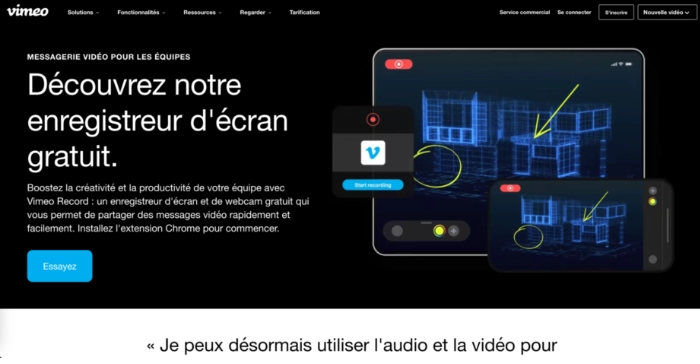
Developed by the eponymous video platform, Vimeo Record offers a basic but effective screen capture tool.
This Chrome extension is aimed mainly at users who make videos for the Vimeo platform, since you can upload them there directly.
In addition to its screen recorder, this plugin can access the webcam to help you create video messages.
The tool is free, but if you want to unlock more features you'll need to subscribe monthly, starting at €8/month.
Screencast-O-Matic
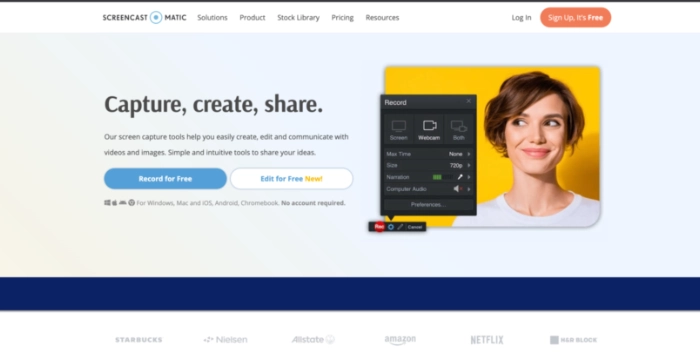
If you're looking for an inexpensive screencast software that lets you do light video editing in addition to captures and recordings, take a look at Screencast-O-Matic.
When recording your actions, you can select the entire page or a region. You can also record from your webcam and the microphone audio. Handy if you want to narrate your actions and film yourself at the same time.
You also have the option of integrating other videos, images, or audio tracks from your computer or smartphone.
Screencast-O-Matic pricing starts at $4/month.
Tella
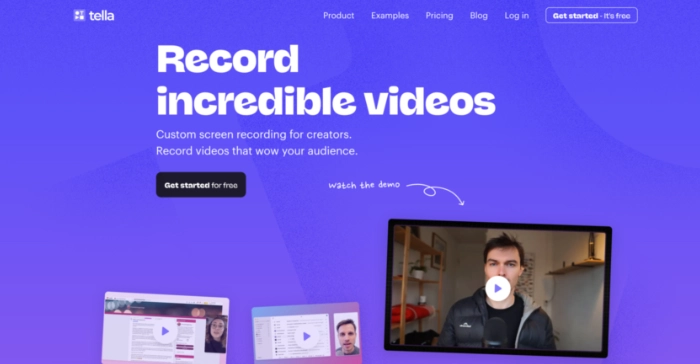
The main strength of Tella : being able to upload a PowerPoint to present it. You can enhance your presentations and create more dynamic tutorials.
Additionally, Tella offers graphic customization options. You can easily integrate your brand guidelines, logo, and color scheme for a more corporate look. the software also includes subtitles automated to improve the accessibility of your video.
Tella costs $15/month.
Screencastify
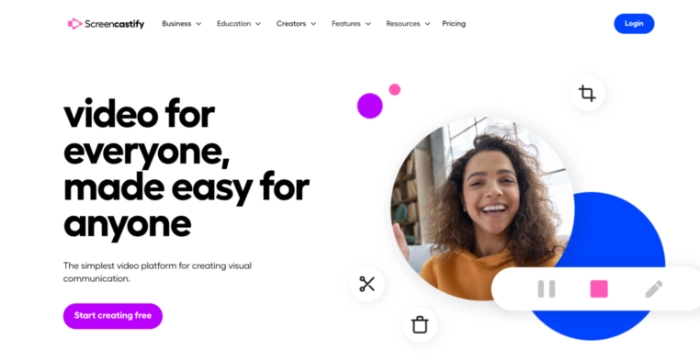
Recording, sharing, and editing — it's that simple with Screencastify ! This screen capture software installs directly in Google Chrome and lets you record your actions on the web. You can also enable the webcam if you want to show yourself commenting on your actions.
Although Screencastify has a free version, it's better to choose the paid plan, which is more complete and watermark-free. You'll have all the features to edit, assemble, and share your presentation. Its first plan starts at $7/month per user.
6 paid screencast programs to record your screen
A paid screencast software generally offers advanced features to record your screen like a pro.
Here you'll find a selection of easy-to-use software to create dynamic, high-quality videos from your computer!
SoapBox
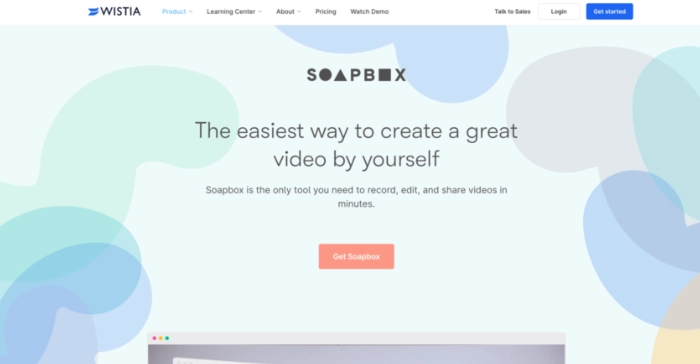
Developed by Wistia, a video marketing platform, SoapBox it lets you easily record your screen and/or webcam, then edit your video for a professional finish.
Add transitions, trim clips, zoom, insert a call-to-action… These edits are possible in just a few clicks!
If Soapbox has a free version, it's recommended to opt for a paid plan to benefit from its best features. The Solo plan, ideal for freelancers and very small businesses, costs $300/year.
Bandicam
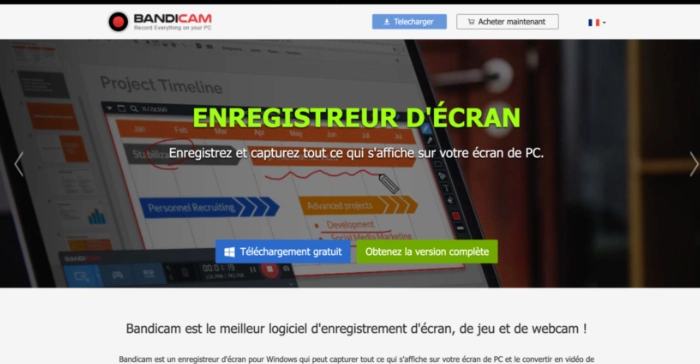
To record your screen or part of a video game, Bandicam It proves to be a particularly useful tool! Whether you want to record via webcam, capture only part of the screen, or comment on your actions, this software adapts precisely to your recording needs.
In addition to capturing live animation, it lets you perform video editing without prior technical knowledge. You can draw on the screen, mix and enhance your voice, and modify click effects.
Its standout feature: the ability to schedule recordings on a daily or weekly timetable.
Bandicam is only compatible with Windows. Its annual license costs €36.95, while the lifetime license costs €49.95.
Snagit
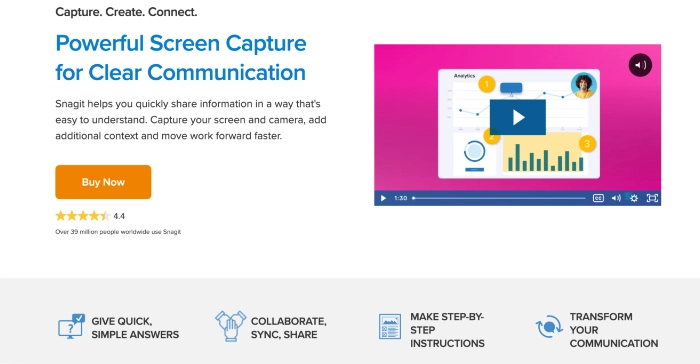
Comprehensive and intuitive, the screencast software Snagit offers many features to edit your videos.
In addition to capturing the screen, webcam image and your voice, this software allows you to:
- to easily create slideshows,
- to add GIFs, text, stickers, or annotations to your videos,
- to trim and crop them,
- or even to add elements like call-to-action buttons.
Available on PC and Mac, the license costs €70.84.
Flashback Pro
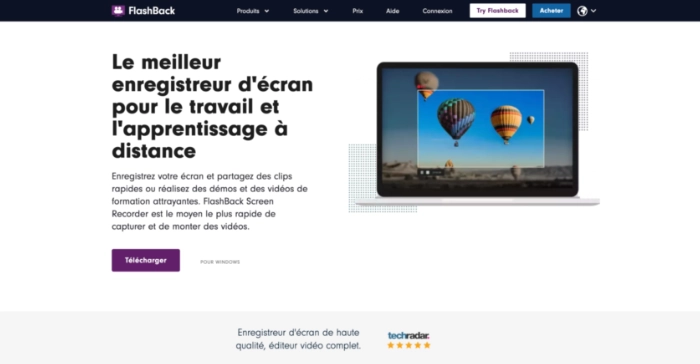
Need to create a quick tutorial? With FlashBack Pro, you have an easy-to-use screen recorder to record one or multiple screens. Equipped with video editing features, you'll be able to add images, audio and notes.
Its strength is supporting multiple formats: MP4, GIF, AVI, QuickTime… It also offers direct upload to YouTube to save you time.
FlashBack Pro is available on Windows for €48 (one-time payment).
Icecream Screen Recorder
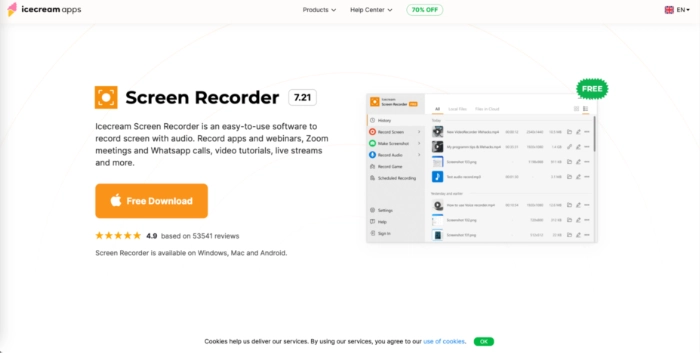
To record your Zoom meetings, your WhatsApp calls or simply capture your computer screen, Icecream Screen Recorder it's ideal. Intuitive, it's instantly easy to use.
After recording, this tool lets you edit your video to insert a logo or an image, text, graphical elements (arrows, buttons or stickers, for example)…
Once the capture is finished, you can share it with one click with your colleagues, clients or friends via a link. Like Bandicam, Icecream Screen Recorder lets you schedule recordings on a one-off or regular basis.
The Pro version costs €29.95 per year. A lifetime license is available for €59.95.
TinyTake
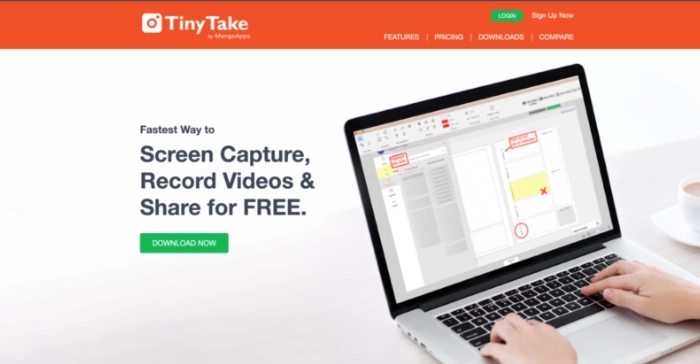
Like all the other screencast tools seen earlier, TinyTake allows you to capture your desktop live and simply edit the video. However, its advantage is that it also offers a service online storage of 1 TB of storage, as well as chat support.
Recordings can be shared with one click with your collaborators, partners or clients.
TinyTake is compatible with Windows 7 and later. The price will depend partly on the allotted capture time. Expect $29.95/year for 15-minute videos, $59.95/year for 30-minute recordings, and $99.95/year for 60 minutes.
8 most feature-rich paid screencast software
If, in addition to recording your screen, you need professional video editing features, opt for a paid screencast tool.
Here is our selection of the most comprehensive recording software on the market.
Camtasia: a very powerful screencast software
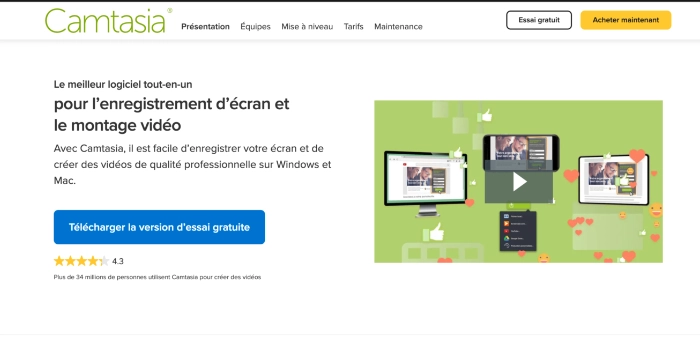
The screencast tool Camtasia offers many recording and editing features. It's the perfect software if you create tutorials, courses, entertaining videos, product demonstrations, or if you host webinars.
You can control which part of the screen to capture, and also manage different audio tracks to switch between your PC sounds and your microphone.
Once the video is recorded, Camtasia lets you make it more dynamic with sound effects, transitions, animations, overlays, etc.
The Camtasia license costs €337.35 (one-time payment).
Adobe Captivate
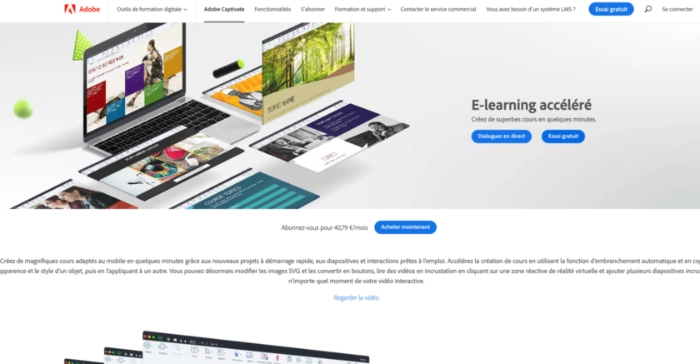
You almost certainly know the Adobe suite with programs like Photoshop, Stock, Illustrator, Creative Club, InDesign… You can add Adobe Captivate to this palette an online tool that lets you record your computer screen.
Reserved for people who are comfortable with the Adobe environment, this powerful platform offers everything a video editor could hope for! During recording, you can capture multiple types of content at the same time (desktop, webcam, microphone…) and even record what you do on a smartphone and tablet (iOS).
Integration with other company tools opens up almost infinite creative possibilities! You can even create virtual reality journeys, simulate applications, build multi-module interactive courses, etc.
On pricing, Captivate is available as a monthly subscription at €40.79/month.
Movavi
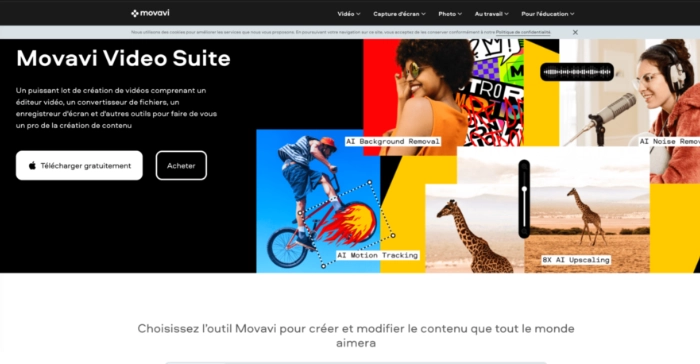
If you're looking for a professional tool for high-quality videos, Movavi Screen Recorder Studio should meet your expectations.
Despite its many editing and production features, the software remains fairly easy to use. It is perfectly suited for people who want to record webinars, launch courses, create tutorials or host effective demonstrations.
To take advantage of the maximum number of options and to be able, among other things, to overlay your webcam, draw on the video, record in slow motion, add transitions and subtitles or cut sequences, choose the full package at €57.95.
Screen Recorder
The software Screen Recorder Pro by Apowersoft benefits from all the expertise of this company specialized in designing creative and intuitive tools. Although this software is available in a free version, we recommend the pro solution to customize and optimize your video.
In addition to recording the screen, webcam and microphone simultaneously (if you wish), you can download your videos in various formats: MP4, AVI, WMV, FLV, MKV…
Screen Recorder includes real-time editing: during capture, a toolbar lets you add annotations or highlight elements. Of course, if you prefer to edit the video after recording, that's possible too!
Regarding pricing, you can choose between a monthly subscription at €19.95, an annual one at €39.95 or a lifetime option for €69.95.
Screenflow: the screencast tool for Mac
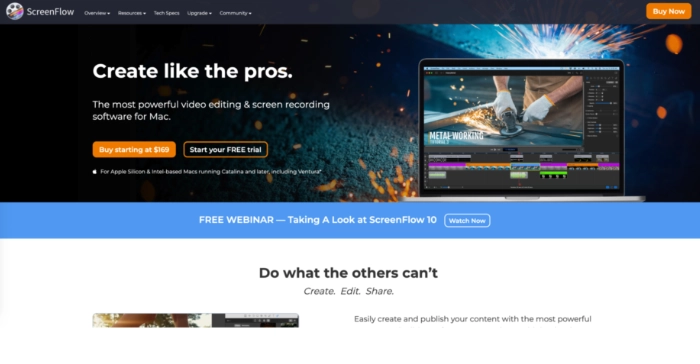
If you have professional needs, know that Screenflow allows high-quality recordings and that the tool has a built-in media library. You benefit from photos, videos and audio tracks to add to your recordings.
Naturally, you also get all the editing features necessary to enhance your video:
- adding transitions, animations, text, or notes,
- support for subtitles,
- audio integration...
On the pricing side, count $169 for a single license.
Filmora Scrn
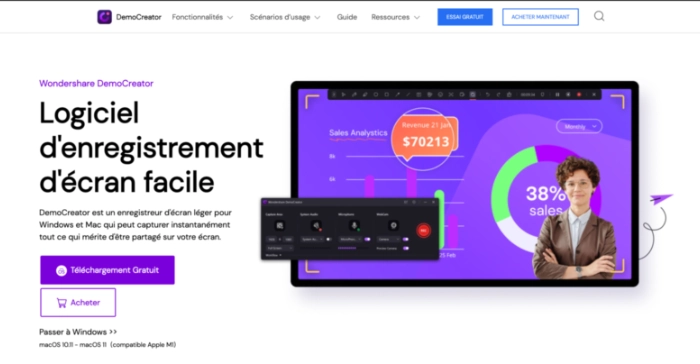
Need to capture your desktop at the same time as your webcam, then edit the video? Filmora Scrn is the screencast software you need!
However, to obtain advanced editing features, it's better to opt for the version Demo Creator. You will be able to:
- record on a green screen,
- draw on the video,
- add annotations, emojis, or stickers,
- edit the cursor,
- cut sequences,
- apply transitions and other effects to enhance your clip,
- etc.
For pricing, expect €59.99/year to get all these options.
ScreenToVideo
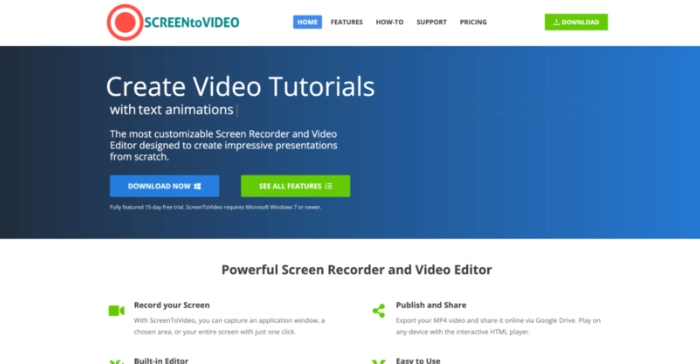
Simple and effective, ScreenToVideo it offers all recording and editing functions in a single interface. With one click you capture your desktop, as well as your webcam, the computer's audio and/or your microphone. You can also use the “Timer” function to ensure recording at the right moment!
As soon as the capture is finished, you can crop, cut and split the screen, zoom in on an area and overlay other media (videos, photos, audio…).
ScreenToVideo also includes a feature Text-to-Speech that lets you dictate text or insert subtitles easily.
The license costs $119.
Active Presenter
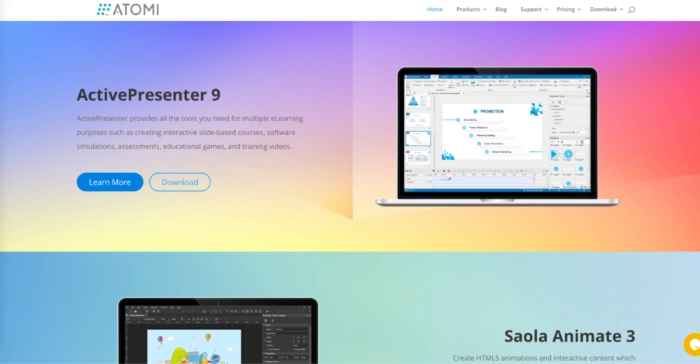
If you're looking to create playful and interactive videos, Active Presenter it is the ideal tool!
Whether for training, e-learning, mini-games, or bringing your PowerPoint presentations to life, this screencast software offers very powerful features.
In addition to recording your screen and your microphone audio, you can add quizzes, action buttons, dropdown menus, etc. to your video.
License price: $199.
2 Chrome plugins to capture your browser
Simple and effective, discover Chrome extensions to take screenshots or make video recordings with one click.
Screen Recorder
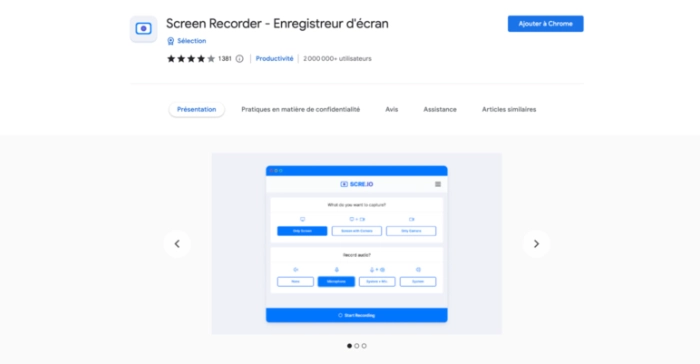
The Chrome extension Screen Recorder allows you to capture a window, a tab, or your desktop. You even have the option to record your voice at the same time.
Even though this plugin is free, no watermark appears on the video. Recording time is also unlimited.
You get publishable-quality content as-is or to edit using video editing software.
Nimbus Screenshot
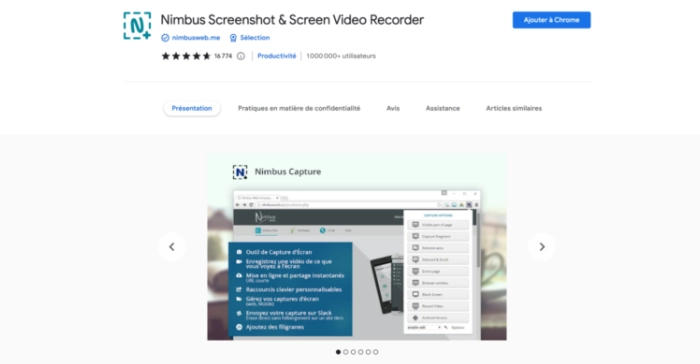
The free Chrome plugin Nimbus Screenshot lets you capture all or part of a web page. You can also record your webcam at the same time.
Afterwards, you have the option to annotate, edit, or trim your video, change the background color, optimize images, etc.
The recordings are of excellent quality: the extension supports HD, Full HD, and 4K.
Our tip for creating screencast videos
Before choosing your software, assess your needs. Free solutions are sufficient for professionals who want to create simple clips or stripped-down demonstrations. If you want to record courses, webinars, or advanced tutorials, it's better to choose screencast software with editing features.
However, for professional videos that will meet your marketing objectives, hire a freelancer on Codeur.com