Lorsque vous êtes aux commandes d’un site web, il est primordial que vos pages soient visibles et accessibles via les moteurs de recherche. Si certains liens sont verrouillés, sans que vous le sachiez, vous passez à côté d’opportunités précieuses. L’une des causes possibles de cette situation est l’utilisation d’une balise HTML appelée noindex. S’il existe des contenus qu’il faut mieux ne pas indexer, pour d’autres, cela indique un problème.
Voyons ensemble comment identifier les pages exclues par la balise noindex via la Search Console et surtout, comment résoudre le blocage pour maximiser votre visibilité en ligne !
Qu’est-ce que la balise noindex ?
La balise noindex est une instruction que vous donnez aux moteurs de recherche pour leur dire de ne pas inclure une page spécifique dans leurs index. En clair, cette page n’apparaîtra pas dans les résultats de recherche.
Il y a des moments où utiliser noindex est judicieux, comme pour éviter le référencement de pages sans intérêt pour le grand public (comme des pages de politique interne ou des confirmations de commande). Toutefois, un mauvais usage peut vous rendre invisible là où vous souhaiteriez briller.
Identifier le problème pages exclues par la balise noindex dans la Search Console
La Google Search Console est un outil formidable pour les gestionnaires de sites web. Elle vous aide à comprendre comment Google voit votre site. La section “Indexation” de cet outil est particulièrement utile. C’est ici que Google vous informe des pages qu’il a “Exclues par ‘noindex’”.
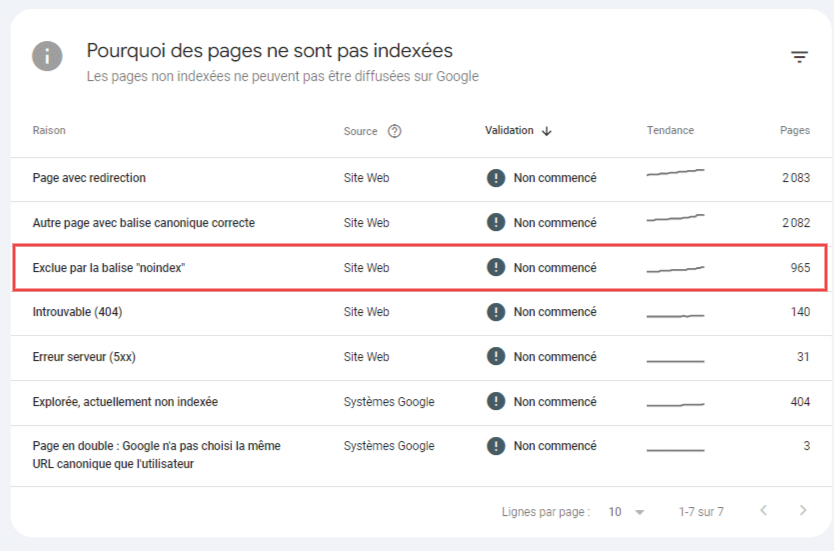
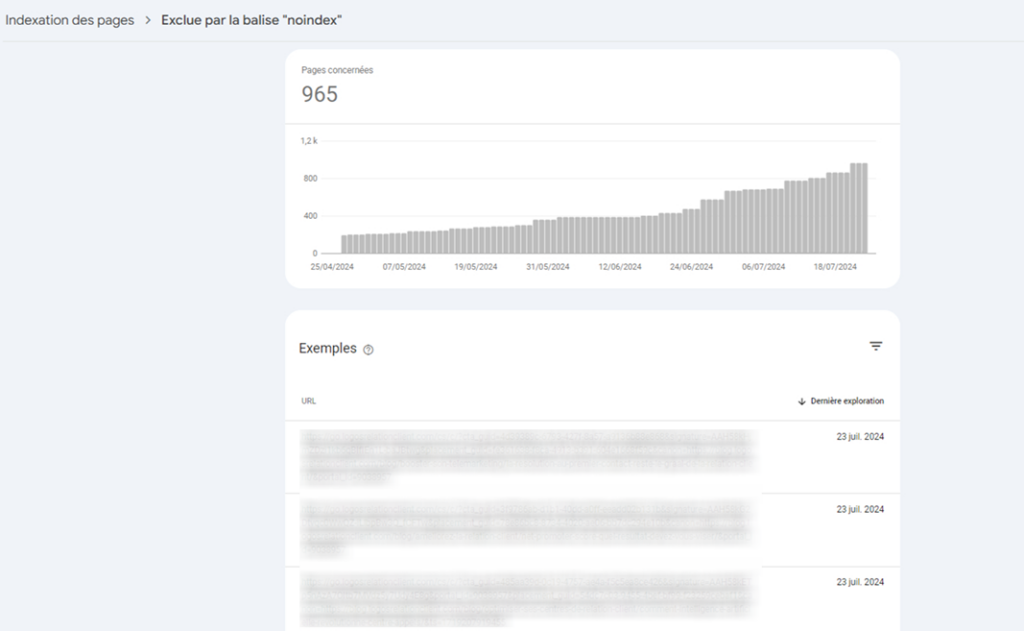
Si vous en trouvez, c’est le moment d’agir et de vérifier si cette décision est légitime. Cliquez sur cette catégorie pour passer en revue les pages concernées, mais aussi vérifier si elles sont en hausses. En effet, cet indice pourrait indiquer un problème sur votre site, notamment si vous n’avez pas mis en ligne de nouveaux contenus récemment.
Pourquoi mes pages sont-elles marquées comme noindex ?
L’indexation sur Google peut être entravée par plusieurs facteurs techniques. Voici les principales raisons qui expliquent que votre contenu passe en « noindex ».
Présence de la balise noindex sur vos pages
C’est évidemment l’élément le plus probable : vos pages disposent d’une balise noindex. Si vous utilisez WordPress, vous pouvez gérer la présence de balises noindex avec différents plugins, comme Yoast SEO. Vérifiez si la présence d’une balise noindex est volontaire ou non.
Le lancement d’un nouveau site
Typiquement, un site fraîchement mis en ligne peut nécessiter quelques semaines avant d’être répertorié par les moteurs de recherche. Durant cette période, il est judicieux de soumettre votre site via la Google Search Console et de vérifier que votre fichier sitemap.xml est bien configuré et accessible pour faciliter cette indexation.
Une erreur du fichier .htaccess
Pour les serveurs HTTP Apache, le fichier .htaccess permet de restreindre l’accès à certaines parties de votre site. Une configuration inappropriée pourrait empêcher Google d’accéder et d’indexer des contenus importants.
Il est donc nécessaire de confirmer que vos pages ne sont pas bloquées par ce biais.
Un blocage au niveau du fichier robots.txt
Ce fichier, qui gère l’accès des robots aux différentes parties de votre site, peut parfois contenir des directives qui bloquent l’indexation. Une analyse de ce fichier à la racine de votre domaine (par exemple, www.votresite.com/robots.txt) est indispensable pour s’assurer qu’aucune page importante n’est exclue.
Un souci d’URL canonique
La balise canonical est utilisée pour indiquer aux moteurs de recherche la version originale d’une page, en cas de contenu dupliqué ou similaire. Assurez-vous que l’URL spécifiée dans cette balise ne redirige pas vers un autre lien, notifié comme noindex, qui serait alors considéré comme la référence. Cela empêcherait l’indexation de la page actuelle.
Une mauvaise gestion des balises META
Les balises meta, notamment la balise “noindex”, peuvent empêcher volontairement l’indexation de certaines pages. Il est important de les retirer si l’objectif est de rendre le contenu visible sur les moteurs de recherche. Vérifiez également dans la section Réglages de votre CMS que l’option « Visibilité par les moteurs de recherche » est bien activée.
Un problème lié à l’utilisation du JavaScript
Si votre site repose sur JavaScript pour afficher son contenu, cela peut engendrer des problèmes d’indexation, car tous les robots ne lisent pas efficacement ce langage de programmation. L’utilisation de l’extension Web Developer peut vous aider à identifier si le contenu de votre page disparaît lorsque JavaScript est désactivé, ce qui indique une dépendance excessive à cette technologie.
En somme, pour que votre site soit rapidement et correctement indexé, une vérification méticuleuse de ces éléments est essentielle. Un contenu bien accessible et des configurations correctes garantiront que votre site gagne en visibilité dans les meilleurs délais.
Comment corriger les pages exclues par la balise noindex de la Search Console ?
Si vous décidez qu’une page ne devrait pas être bloquée par noindex, la solution est simple : supprimez la balise en question. Après cela, demandez à Google de revisiter la page.
Voici comment procéder étape par étape :
- Retirer la balise noindex : Ouvrez le fichier HTML ou accédez à l’interface de votre CMS où vous pouvez modifier les métadonnées. Supprimez toute instruction noindex présente.
- Demander une nouvelle exploration : Retournez à la Google Search Console. Utilisez l’outil d’inspection d’URL pour demander à Google d’explorer à nouveau la page. Cela accélère le processus de réindexation.
- Surveillez les résultats : Après avoir demandé l’exploration, gardez un œil sur la Search Console pour vérifier que la page est bien réindexée et qu’elle n’est plus listée dans les exclusions.
Notre dernier conseil pour corriger les pages exclues par la balise noindex
Gérer astucieusement la balise noindex vous permet d’optimiser la visibilité de votre site web. Pour aller plus loin, et améliorer votre positionnement dans les moteurs de recherche, pensez à collaborer avec des créateurs de contenu professionnels via notre plateforme de rédaction, Redacteur.com. Des pages et articles de qualité améliorent significativement votre présence en ligne. Pensez-y !
L’article Corriger les pages exclues par la balise noindex de la Search Console est apparu en premier sur Redacteur.com.