A l’heure où la navigation internet par smartphone devient le mode de navigation principal dans le monde, il est plus que jamais important pour les webmasters d’apporter une attention toute particulière à la vitesse de chargement de leur site internet. Selon un sondage récent sur les préférences des internautes, il ressort que ces derniers sont désormais très regardants sur la vitesse de chargement des pages qu’ils consultent. Si celle-ci offre un temps d’affichage supérieur à 3 secondes, plus de 45% des internautes quitteront la page dès la 4ème seconde…
Alors que beaucoup de paramètres sont à prendre en compte pour une vitesse de chargement optimale, tant pour vos visiteurs que pour les moteurs de recherches indexant votre site internet, le plus important est sans conteste possible le poids de vos images, qui se veulent légères pour un chargement rapide. Mais compresser une image est un art complexe, où il vous faut résolument prendre en compte le poids de cette dernière mais également sa qualité, qui elle se doit d’être préservée.
Heureusement, des outils sont à votre disposition pour vous aider à compresser une image sans altérer sa qualité, et en découlant celle de vos pages. Qu’ils soient en ligne ou rattachés à une plateforme de création, ces outils, gratuits ou payants, sont parmi les plus efficaces actuellement proposés. Ne perdez pas de temps à les chercher, Codeur.com les a regroupés pour vous ci-dessous.
Compresser une image en ligne : les 9 outils indispensables
Ouverts au plus grand nombre et majoritairement gratuits, les outils pour compresser une image en ligne sont bien souvent les premiers venant à l’esprit de beaucoup de webmasters. Pour beaucoup même, ce sont les seuls qu’ils utilisent de par leur rapidité d’accès et des résultats professionnels qu’ils peuvent acquérir gratuitement.
Pourtant, des outils pour compresser une image sur WordPress ou PrestaShop existent, comme nous le détaillons plus loin dans cet article. Mais avant de s’y attarder, découvrez ci-dessous les 9 outils en ligne qu’il vous faut connaître pour compresser une image.
1. Compressor
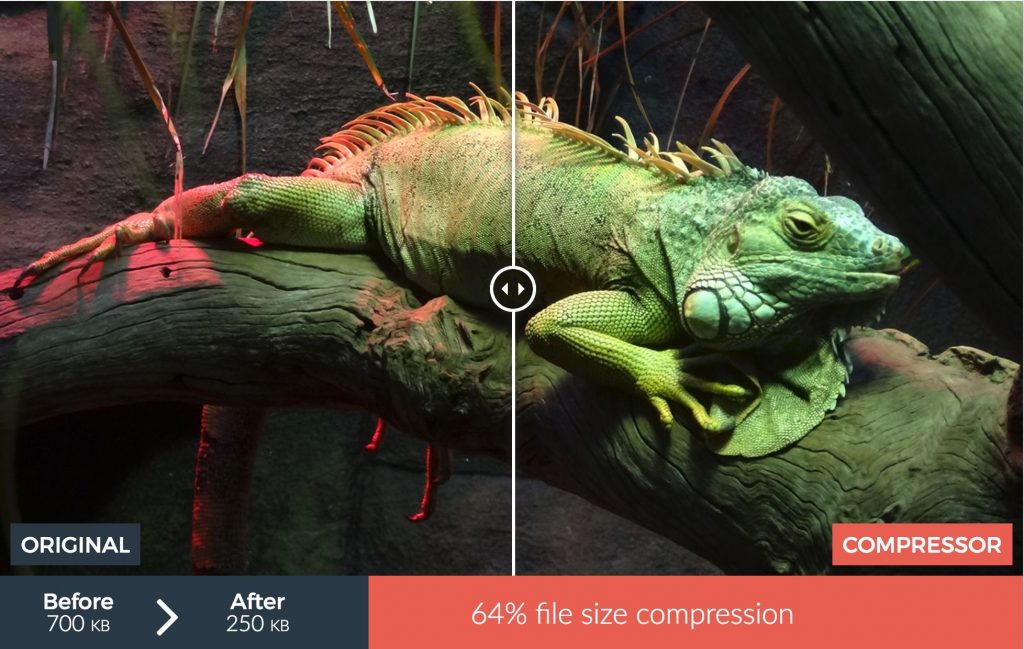
Gratuit, en ligne et intuitif, Compressor est une référence dans le domaine de la compression d’image. Il supporte 4 formats (JPEG, PNG, GIF et SVG) et vous permet de bénéficier d’une photo de belle qualité, plus légère, en quelques clics.
→ Découvrez également 6 outils de retouche photo en ligne
2. Optimizilla

L’interface de l’outil Optimizilla est ultra simplifiée. Vous pouvez télécharger et compresser jusqu’à 20 photos en une seule fois. Par contre, seuls les formats JPEG et PNG sont acceptés. À la fin de la compression, vous pourrez même comparer les images pour vérifier que la qualité vous convient.
3. Compresser JPEG
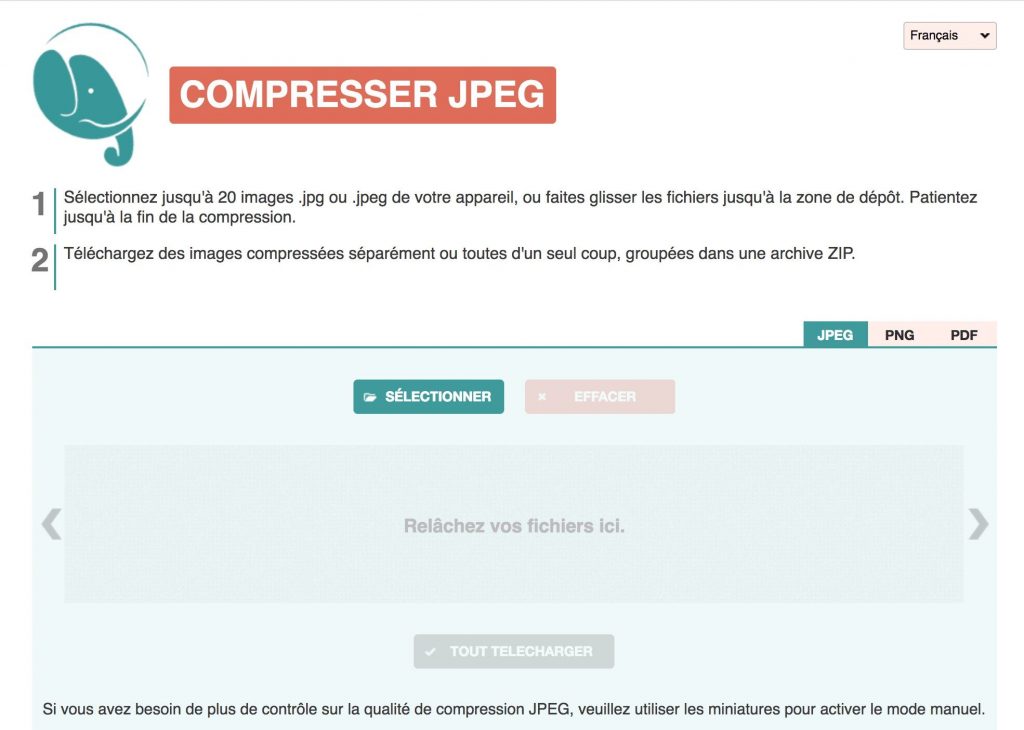
Compresser JPEG est un Optimizilla bis. Il propose les mêmes fonctionnalités, sauf que, comme son nom l’indique, il n’accepte que les images en JPG ou JPEG.
4. Gif Compressor
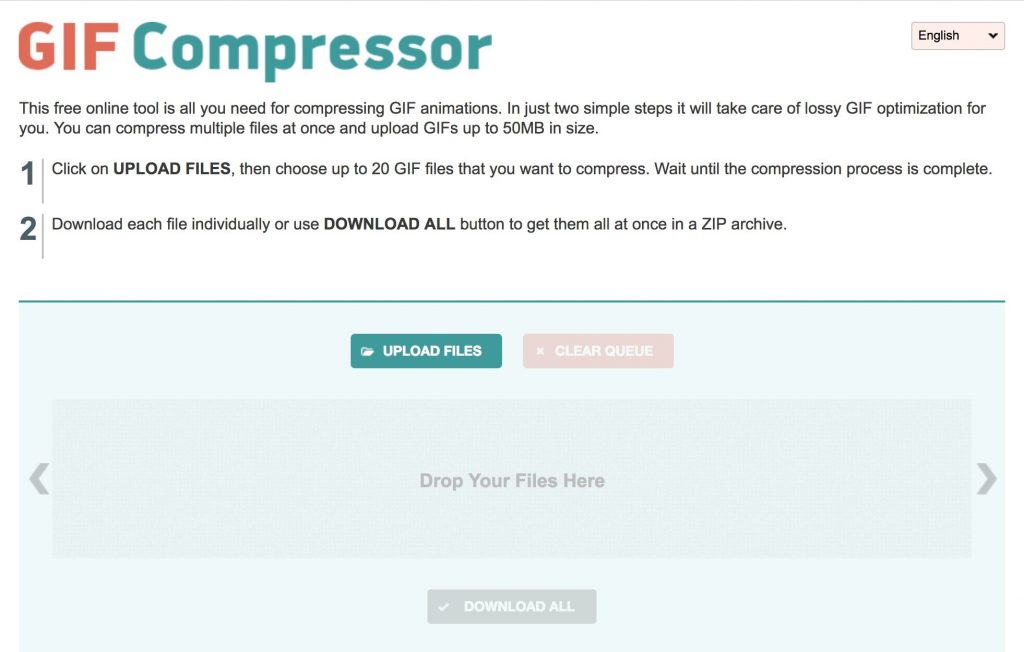
Avec Gif Compressor, on reste dans la même famille qu’Optimizilla et Compresser JPEG, sauf qu’ici on réduit les GIF. Vous avez aussi la possibilité d’en uploader 20 à la fois.
→ 7 outils pour créer des gifs en ligne
5. I Love Img
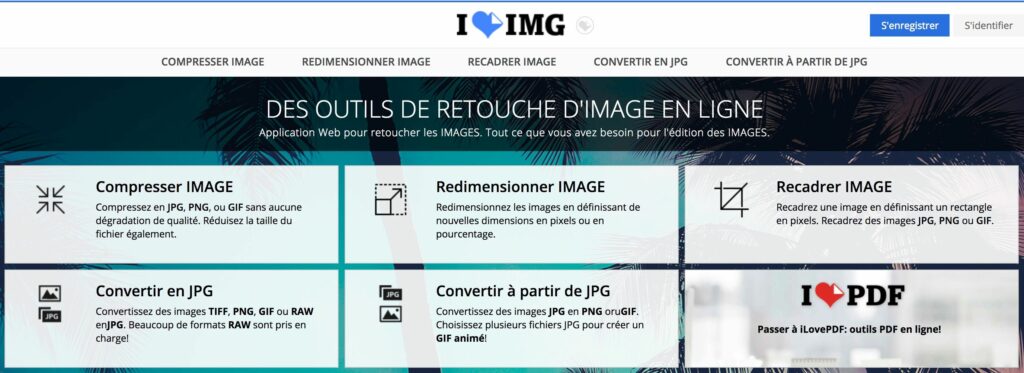
Plus complet que les autres outils présentés, I Love Img vous permet de recadrer, redimensionner et compresser vos images. Vous pourrez davantage travailler sur votre visuel avant d’en réduire le poids, mais pas la qualité. Les formats supportés sont JPG, PNG ou GIF. Vous avez la possibilité d’uploader plusieurs photos depuis votre ordinateur ou un dossier Dropbox.
6. ezGIF
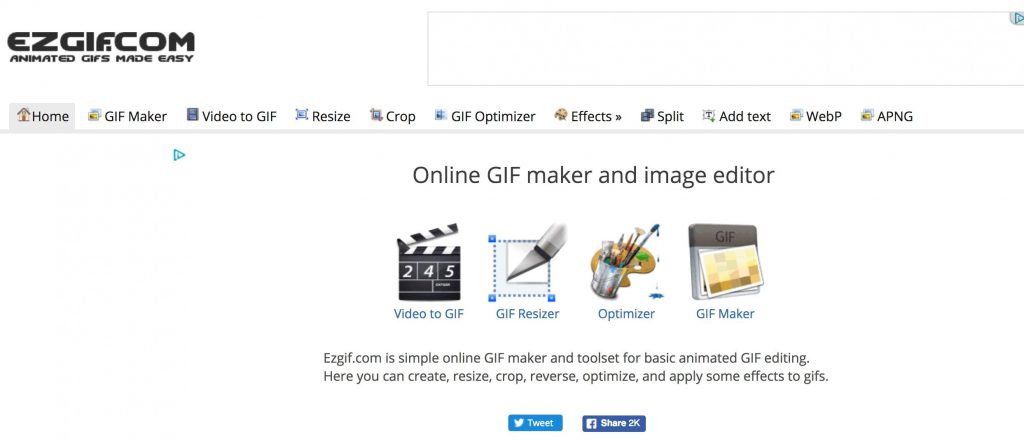
Comme son nom l’indique, ezGIF est un outil entièrement dédié aux animations. Il vous permet de créer, optimiser ou redimensionner un GIF. Vous pourrez aussi modifier les animations, ajouter du texte ou ajuster la vitesse de lecture.
Enfin, si votre fichier GIF est trop lourd pour être uploadé sur votre site ou les réseaux sociaux, vous pourrez le compresser sans altérer sa qualité.
7. TinyJPG ou TinyPNG

Ces deux plateformes similaires, qui ont un panda très mignon comme mascotte, vous proposent de compresser vos photos en format JPG ou PNG. En un seul clic, vous récupérez des visuels de très bonne qualité, mais bien plus légers.
8. Jpeg.io
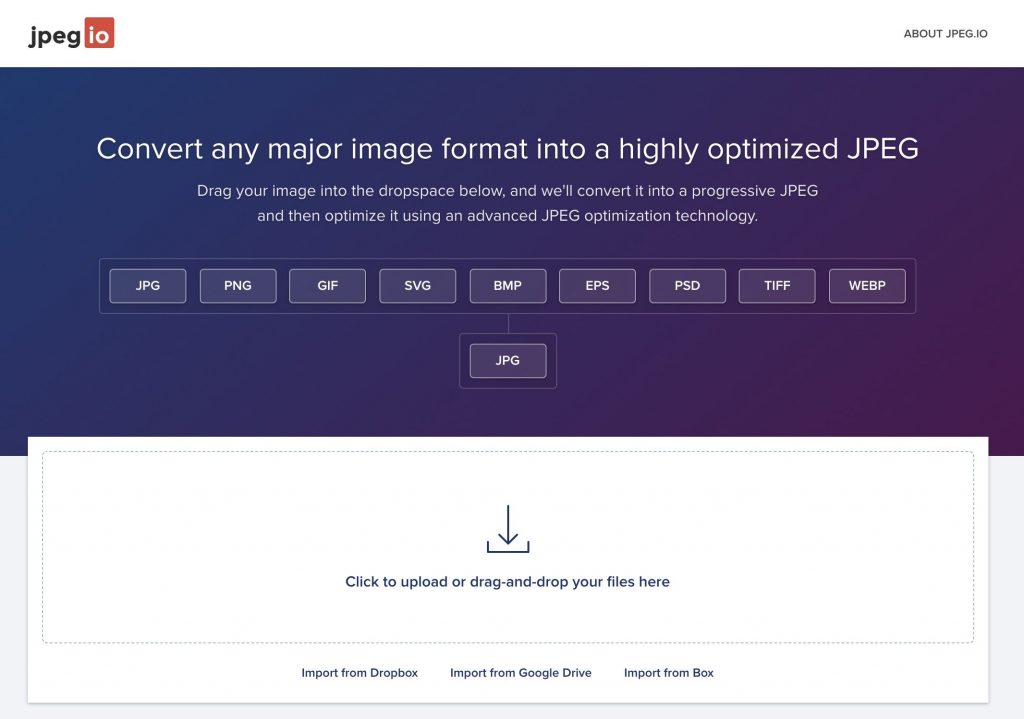
Très complet, l’outil Jpeg.io accepte quasiment tous les formats photo : JPG, PNG, GIG, BMP, PSD, TIFF… Par contre, dès que vous uploadez une image pour la compresser, il vous la ressort en format JPG. Vous n’aurez pas d’autre choix. Cependant, rien ne vous empêche de la reconvertir par la suite.
9. Kraken
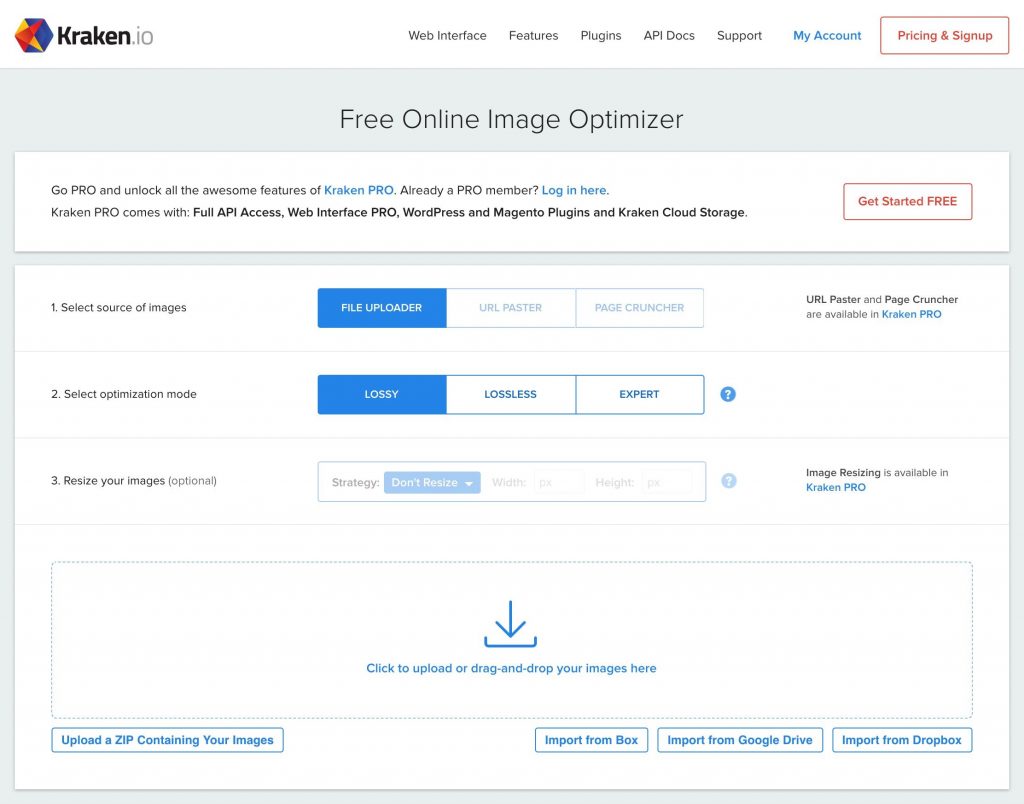
Simple et efficace, Kraken vous laisse le choix dans la compression : Lossy, Lossless et Expert. Vous pourrez donc sélectionner une compression maximale, mais avec une légère perte de qualité, ou une compression plus faible qui conserve la netteté de votre photo. À voir selon vos besoins !
Compresser une image sur WordPress : les 4 outils à connaître
Avec ses 4 tailles d’images disponibles, WordPress est plutôt en retard sur les attentes et les besoins actuels de ses utilisateurs lorsqu’il s’agit de liberté creative. Pourtant, il propose depuis plusieurs années déjà des modules compatibles à ses créateurs pour leur permettre de compresser une image sans avoir besoin de chercher une solution de compression d’image en ligne. Si la liste des modules disponibles est longue, 4 ressortent particulièrement pour leur professionnalisme.
1. Imagify
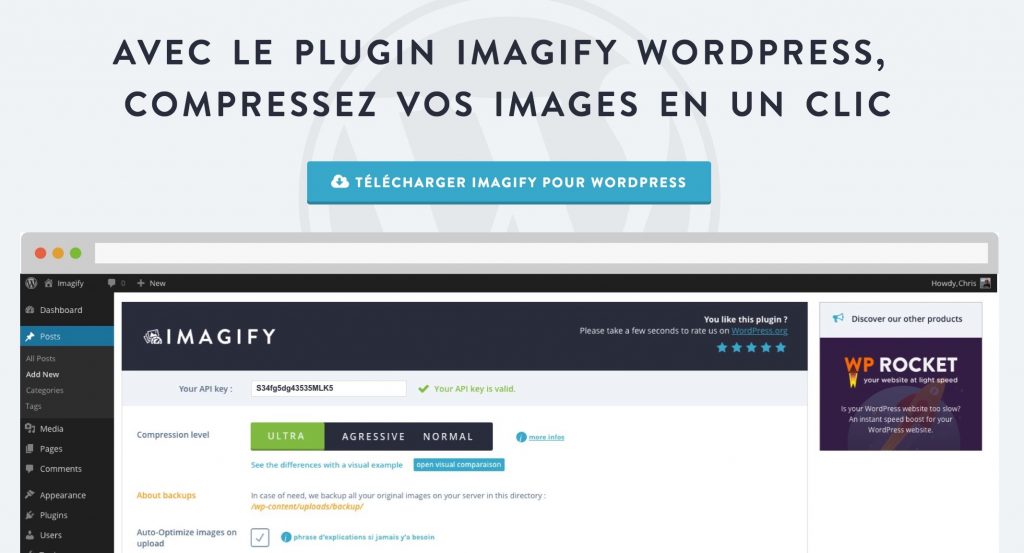
Imagify est un plugin WordPress gratuit qui vous fera gagner un temps considérable. Plutôt que de réduire vos photos une par une, cette extension se propose de les compresser en une seule fois. Bien entendu, si vous ne souhaitez réduire qu’une partie de vos visuels, l’outil vous propose de les sélectionner au préalable. Vous aurez également le choix de la force de compression : Ultra, Agressive ou Normal. Imagify vous affiche ensuite vos statistiques pour connaître le poids gagné suite à la compression.
2. WP Smush
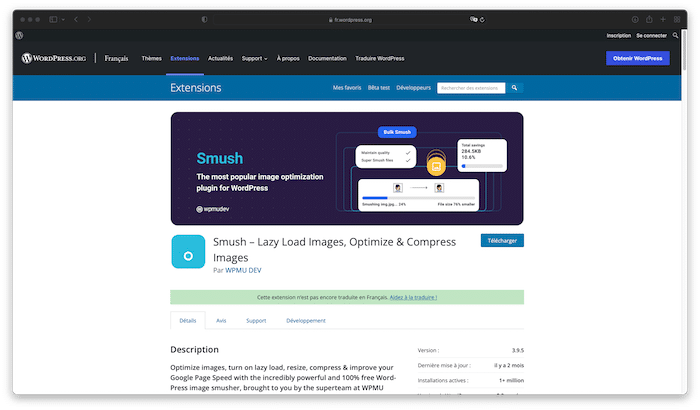
Avec plus d’un million d’utilisateurs actifs à ce jour, WP Smush est l’outil de compression et d’optimisation le plus célèbre de WordPress. Compatible avec la version multisite, il se propose à votre sélection de par une version gratuite et une version payante à 49$ par mois. Notez que la première ne vous permet pas la compression sans perte, à contrario de la payante. Vous disposez également de l’option « lazy load », ainsi que de la possibilité d’optimiser jusqu’à 50 images en même temps. Enfin, vous pourrez également redimensionner les images (définir les paramètres de largeur et de hauteur maximales) et repérer rapidement les images qui ralentissent votre site.
3. ShortPixel

Proposant de redimensionner et compresser vos images sans aucune perte de qualité, ShortPixel est un indétrônable des outils pour compresser une image sur WordPress. Fonctionnant en automatique et très rapidement, il enregistre vos images originales dans un dossier séparé et permet de comparer le fichier original avec sa version compressée, afin de voir la différence de qualité et de taille. Proposé sous un format gratuit et payant, il offre un plan gratuit pour 100 compressions par mois, puis échelonne ses tarifs de 5 à 30$.
4. EWWW
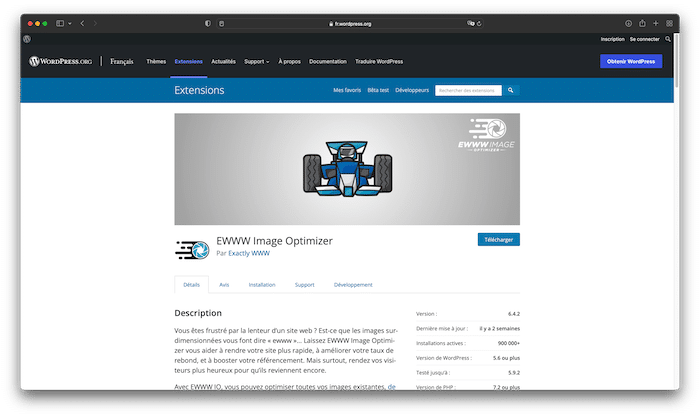
100% gratuit, EWWW propose l’optimisation des fichiers JPG, PNG, GIF et PDF. Il existe des options de compression avec et sans perte, le premier avantage d’EWWW est qu’il n’y a pas de limitations pour le nombre d’images téléchargées. De surcroît, la version gratuite d’EWWW effectue les optimisations sur votre propre serveur web, alors que tous les autres outils utilisent des serveurs externes. C’est une bonne chose pour les sites axés sur la protection de la vie privée. Attention cependant, vous ne serez pas à l’abri d’une surchauffe si vous tentez de compresser trop d’images en une seule fois.
Compresser une image sur PrestaShop : l’option CDN
Plateforme populaire, PrestaShop est malheureusement à la traîne lorsqu’il s’agit de proposer des modules gratuits permettant la compression d’une image. Les rares existants proposent tous des abonnements dont le prix n’est pas très attractif lorsqu’ils sont comparés aux modules WordPress ou encore aux outils de compression d’images en ligne. Heureusement pour les webmasters désireux d’augmenter la performance de leur site, la plateforme se dote de l’outil CDN (Content Delivery Network).
Par définition simple, cet outil propose la distribution de vos contenus media depuis un autre serveur que le vôtre. Si cela peut paraître hors-sujet pour certains, cela propose plusieurs avantages pour un webmaster : allègement des données traitées par le serveur, parallélisation des demandes amenant une accélération de l’affichage, et dans le cas d’un site international, choix d’un serveur dont l’adresse physique est au plus proche de la cible de votre site internet.
Pour bénéficier de cette fonctionnalité, vous devez au préalable accepter l’activation des CCC. Pour ce faire, rendez-vous sur la page « Serveur de Média ».
Vous avez un projet de création de site internet ou désirez augmenter la performance de ce dernier ? Déposez votre annonce sur Codeur.com et entrez en contact avec des centaines de professionnels dédiés à la réussite de vos projets.
Retrouvez dans cet article d’autres outils pour compresser une image ou des fichiers !
Notre astuce
Vous avez besoin d’aide pour compresser les images de votre site internet ? Faites appel à un freelance en déposant une annonce sur Codeur.com gratuitement.